Saturday, July 14, 2018

Download iPhone Firmware Files from & How to Restore/Update iPhone Use It?


Download iPhone Firmware Files from & How to Restore/Update iPhone Use It?


1. Where to Download iPhone Firmware Files from (Free)


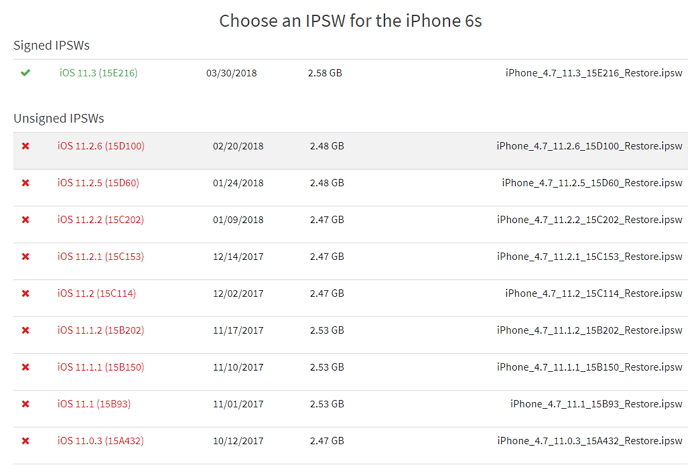
You can easily download the iOS firmware file for iPhone (iPSW files or iOS files) from this site. It is recommended to always download a signed version of the iOS firmware for your iPhone. Here are the steps to download iPhone firmware (iPSW) for free –


The first step is selecting the product from the list. Click on 'Choose a product' tab and you will see a list. Click 'iPhone' and then you will be navigated to the next step.


In this step, you need to tap 'Choose an iPhone' and select the iPhone model you possess. Here, you can pick iPhone 7/7 Plus/8/8 Plus/X/6S depending upon what device you own.


As soon as you tap on the iPhone model, it will ask you to 'Choose a version' – iOS firmware version. You need to choose and tap on the desired one from the list.


You will navigate to the final step. Here, you have to tap the 'Download' button and wait until the iPhone software download is complete.If you accidentally deleted or lost videos on iPhone, first please check on the Recently Deleted folder. Alternatively, you can use the professional tool Gihosoft iPhone Recovery to recover deleted iPhone videos from Camera Roll or some apps.


Note: You need to locate the file before hand, so that you can easily track it during restoration or update of the firmware, discussed later in this article. Most probably the iPSW file will be saved in your computer's 'Download' folder. Double check it.
2. The Advantages of Installing iPhone iPSW Manually


There are numerous ways that makes installation of iPhone firmware files more convenient as compared to updating your device via OTA (over the air) updates.


Bandwidth: In manual method, you can download iOS firmware file for iPhone once only and then utilize it to update your iPhone anytime. Whereas in automatic (OTA updates) method, you do not have the privilege to use the same update again.


Troubleshooting bricked iPhones: In case you are unable to install the latest iOS due to failed software update or the device is bricked due to jailbreaking or any other reason, OTA method won't help here. Manual installation of iPSW will restore your iPhone using the DFU or recovery mode and bring back your iPhone to life.


Storage: In manual method, the iPSW is downloaded to a computer and then used to update your iPhone, so no need to worry if you're device storage is running out.


Updating multiple devices of the same model: In OTA, every device needs to update the firmware individually whereas manual method allows you to update multiple device of the same model (say you have 3 iPhone 7 devices at home) with a single iPSW file.

Erase Stolen iPhone Data 2019 Guide

Erase Stolen iPhone Data 2019 Guide

My iPhone was Stolen, How Do I Erase Everything?

If you’re certain that your iPhone wasn’t misplaced but stolen, there are many ways you can erase it to prevent the thief from using your valuable data and information against you.
However, you need to know if “Find My iPhone” was enabled on your missing iPhone or not.

Solution 1: If “Find My iPhone” Is Enabled on The Stolen Device

When your iPhone is lost or stolen and Find My iPhone is turned on, then you still have some chances to recover your device or erase it remotely to protect your information and privacy.
Here is how to erase stolen iPhone and keep your information safe with Find My iPhone:
Step 1: Log in to www.iCloud.com with a friend’s or family member’s iPhone, iPad, or iPod touch, or computer.
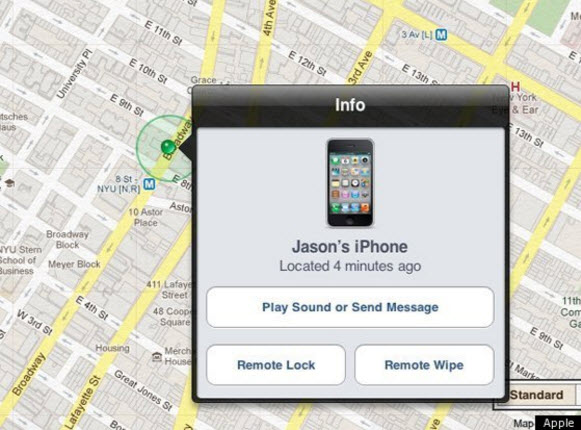
Step 2: To find your lost or stolen device, open Find My iPhone, and click on the stolen iPhone to view its location on the map. You can make it play a sound to see if it’s nearby.
Step 3: Turn on Lost Mode to remotely lock your device, display a message with your phone number on your stolen iPhone’s lock screen, and track your iPhone location.
erase stolen iphone
Step 4: Erase your iPhone to prevent anyone from accessing your data, credit card information, and other information. Click “All Devices” then select the iPhone you would like to erase, then click “Erase iPhone”. Enter the necessary verification requirements, and your stolen iPhone will be remotely erased.Gihosoft Free iPhone Data Recovery is a professional iPhone Data Recovery software to get back all your lost text message, photo, video, call history, note, contact and more from iPhone/iPad/iPod Touch.


Solution 2: If “Find My iPhone” Isn't Enabled on Your Missing Device

The fact is that Find My iPhone is Apple’s only service that can help you to track or locate your lost/stolen iPhone. Hence, if this service isn’t enabled before you lost your iPhone, there is no other Apple service that can help you to erase stolen iPhone.
But there are a few things you can do to prevent greater danger and harm to your privacy:
Step 1. Change your Apple ID Password by following these steps:
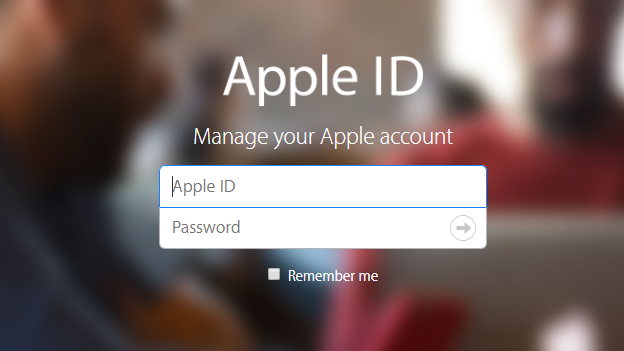
  1. Sign in to your Apple ID Account Page.
  2. Go to the security section and click “Change Password”.
  3. Enter your current password, then the new password in the first and second box to confirm it.
  4. Click “Change Password”.
apple id
Step 2. Change the password to other internet accounts that are open on your iPhone.
Step 3. Report your lost or stolen iPhone to the appropriate local law enforcement agency.
Step 4. Report your lost iPhone to your wireless network carrier to disable your account.

udoq – The ultimate dock for Apple devices 2018 REVIEW


WHAT IS UDOQ?

udoq is a docking station for your that lets you conveniently plug in and manage your Apple devices in a single place.

You can easily charge and operate your iPhone, iPad, iPod, or even the Apple Watch with it.

Check out its video demonstration below and see for yourself why it is called “the ultimate Apple dock”.


FEATURES AND SPECS

The dock is very user-friendly and lets you connect your Apple device and in both vertical and horizontal orientations. It is fully future-proof and offers backward compatibility for legacy models.

You can easily incorporate any new charging standard that may be announced in the future or make swap connectors to accommodate older Apple devices.


The udoq also ensures a super-fast charge with its 2.4 amp integrated 5-port charger and a separate quick-charge port.

What’s more, this dock comes with Lightning to USB cable and even wireless chargers without any extra cost, without any extra cost to the user.
PRICE AND AVAILABILITY

As of now, udoq is sitting at an impressive $7,274 raised by 66 backers. It has already hit the 48% of the overall funding goal and the campaign will last for 9 more days only.If you accidentally deleted or lost videos on iPhone, first please check on the Recently Deleted folder. Alternatively, you can use the professional tool Gihosoft iPhone Recovery to recover deleted iPhone videos from Camera Roll or some apps.


You can support the project and help Marcus reach his $15,000 goal here.

Just like other crowdfunding campaigns, the success of this nifty little gadget depends on its backers and how generous they are. If you want this dock to come to life, please consider funding it.

If you would like to purchase the udoq, you can get the 400 model for $99 (shipping included) directly from Indiegogo and have it delivered to your home by December 2018.

Friday, July 13, 2018

Top 5 Best Free Data Recovery Software of 2018

5 Best Data Recovery Software Of 2018 For Free
1. Recuva:


The fact that Recuva is on the top of the best data recovery software list, may not come as a surprise to the most of you. This data recovery tool has the ability to restore files from hard drives, DVD or CDs, memory cards, and external drives. There are tons of free file recovery software around but few of them come close to Recuva when it comes to hard drive and photo recovery actions. For those who don’t, Piriform’s Recuva recovery perform does its work by searching for unreferenced data. It’s known for getting back lost directory structure as well as renaming two files of the same name while performing the data recovery.


Some of the features that bring Recuva on top of the list of Best recovery software are:


Superior file recovery


Advanced deep scan mode


Secure overwrite feature that uses industry & military standard deletion techniques and,


Ability to recover files from damaged or newly formatted files


Easy User interface


Preview screen before final recovery


Free/Inexpensive data recovery software


Works both on FAT and NTFS systems


Supported Platforms: Recuva data recovery software for PC can be used on Windows 10, 8, 8.1, 7, Vista, XP, and older versions of Windows.
2. TestDisk:


A list of best data recovery software can hardly be termed as being complete without a mention of TestDisk recovery software. It’s an open source software that was created with an aim to get back lost partitions and fix non-booting disks. Packed with features and a file recovery system that can easily overshadow that of any other data recovery software, TestDisk has a lot to offer for both novices and experts. This free data recovery program tries to detect partitions and file entries on its own. The deeper scan for deleted/damaged partitions obviously need more time.


Here are some of the TestDisk’s features:


Allows users to recover/rebuild the boot sector


Fix or recover deleted partition table besides being able to reliably undelete files from FAT, exFAT, NTFS and ext2 file systems.


Available on all major platforms such as Microsoft Windows, Mac OS X etc and is in fact quite popular as it can be found on various Linux Live CD’s.


Being a command line tool, TestDisk hard drive recovery tool may not be suitable for some users for data recovery. If you’re a fan of GUI, I would recommend you to go with Recuva or Stellar for file recovery.


Supported Platforms: TestDisk can run on Windows 10, 8, 8.1, 7, Vista, XP, and older versions of Windows, Linux, BSD, macOS, and DOS.
3. Stellar Data Recovery


Living up to its name, Stellar Data Recovery performs a stellar job in recovering your data from your Windows PC and Mac. If you are regretting your decision of deleting recent files, Stellar Data Recovery tool is here to help you in an effective way. Stellar also has many other tools for home and business applications but here we’ll be focusing on software for photo, USB, and hard drive recovery. Let’s tell you the highlight feature of the program.


Risk-free program recovers data from different types of storage devices like memory cards, smartphones, USB drives, hard disks etc.


Using Stellar Data Recovery program is simple. Just download it, start the scan, and you are able to recover from the past data disasters.


Full of advanced features and fast drive file recovery


Suitable for beginners and non-technical users


In-app preview of files available before making the final recovery attempt; also called Try before Buy feature


Supported Platforms: Revuca recovery program can run on Windows 10, 8, 8.1, 7, Vista, XP, and, macOS.
4. Undelete 360:
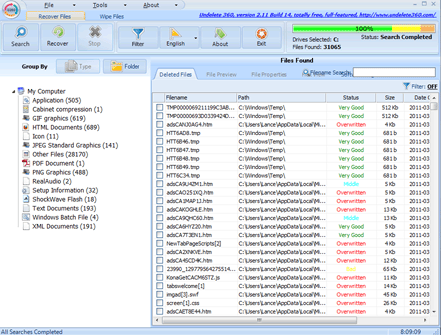


With the looks of a typical Microsoft Office application due to a ribbon-style toolbar and blue color theme, the Undelete 360 is built on a fast yet efficient algorithm which enables the user to undelete files. Here are some of the features of Undelete 360:


Works on a variety of devices such as Digital cameras, memory cards, smartphones, computer hard drives, USBs etc.


It includes a data-wiping tool, a Hex Viewer along with the ability to preview files before recovery.


Does a great job in recovering recently deleted files as compared to other free data recovery software


Also able to recover files of a wide variety of types such as DOC, HTML, AVI, MP3, JPEG, JPG, PNG, GIF, etc.


However, scanning speed needs major improvement and this tool also lags out its competition in terms of recovering data. The small setup size of the tool turns out to be a plus point in this race of file recovery software.


Supported Platforms: Undelete 360 can run on Windows 8, 8.1, 7, Vista, XP, and older versions of Windows.
5. PhotoRec:
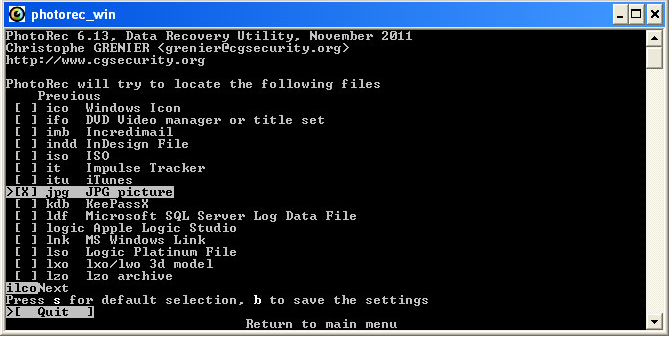


Definitely one of the best data recovery software out there, PhotoRec is widely acclaimed for its powerful file recovery over a wide variety of devices ranging from digital cameras to hard disks. It’s specially created to recover data like pictures, videos, documents, etc., from hard disks, CD-ROMs. Here are some of the features of PhotoRec recovery tool:


Compatible with almost all major platforms such as Microsoft Windows, Linux, Mac OS X etc.


Comes packed with the ability to recover more than 440 different file formats.


Features such as the ‘unformat function’ and the ability to add your own custom file types do come in handy.


This photo recovery software supports lots of file systems, including FAT, NTFS, exFAT, ext2/ext3/ext4 and HFS+.


Although I wouldn’t advise this free data recovery software to beginners as it is completely devoid of a GUI and uses a command line interface which may intimidate some users.If you accidentally deleted or lost videos on iPhone, first please check on the Recently Deleted folder. Alternatively, you can use the professional tool Gihosoft iPhone Recovery to recover deleted iPhone videos from Camera Roll or some apps.


Supported Platforms: PhotoRec recovery program can run on Windows 10, 8, 8.1, 7, Vista, XP, & older versions of Windows, Linux, BSD, DOS, macOS.
How to Unblock a Phone Number on Your iPhone 2018 Guide

Unblock Phone Numbers in Settings

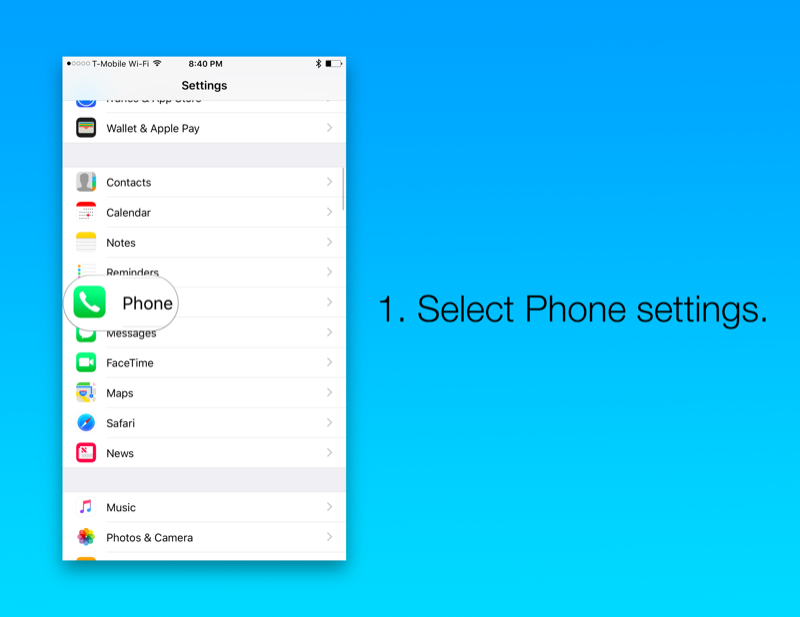
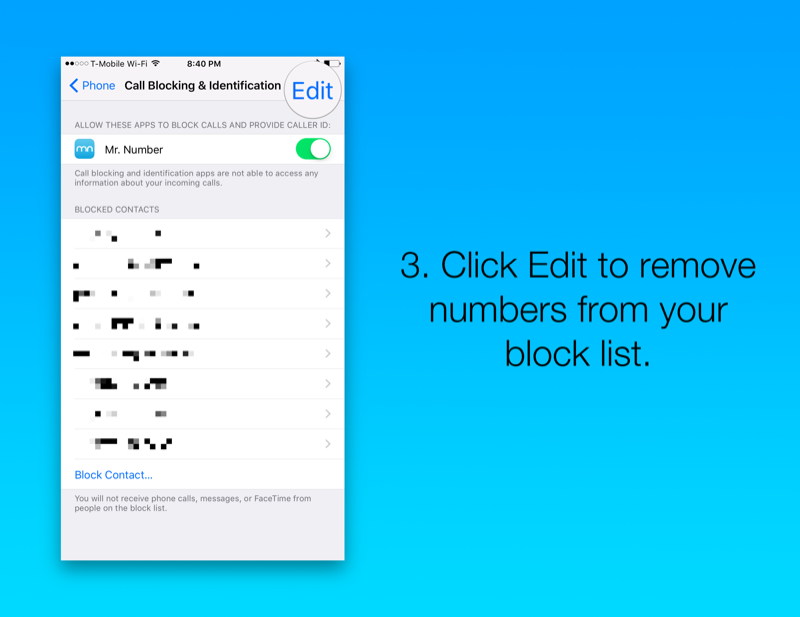
First, open Settings on your iOS device. Scroll to Phone.
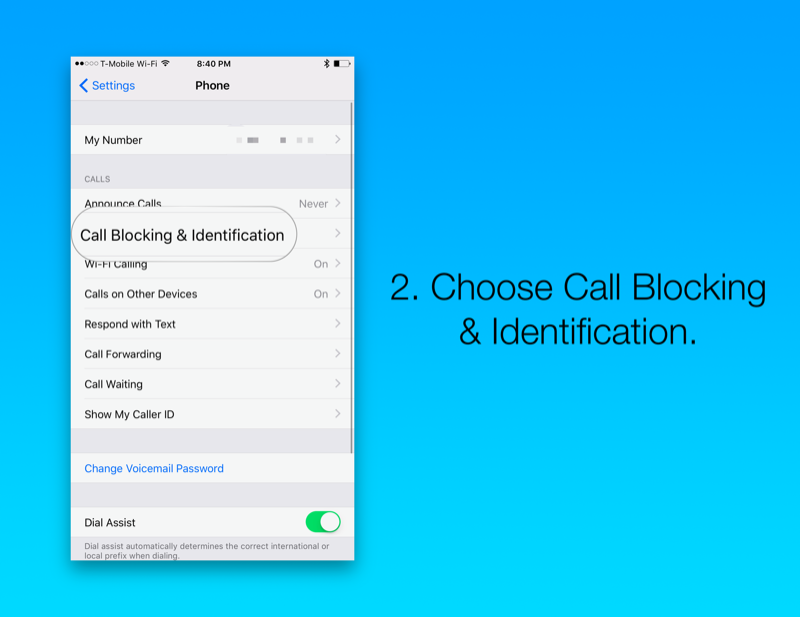
Now choose Call Blocking & Identification.If you accidentally deleted or lost videos on iPhone, first please check on the Recently Deleted folder. Alternatively, you can use the professional tool Gihosoft iPhone Recovery to recover deleted iPhone videos from Camera Roll or some apps.

Here you’ll find a list of numbers you’ve blocked. Additionally, if you use apps to manage blocked numbers or spam, you might see it at the top as well.
Tap Edit at the top right to edit your block list.
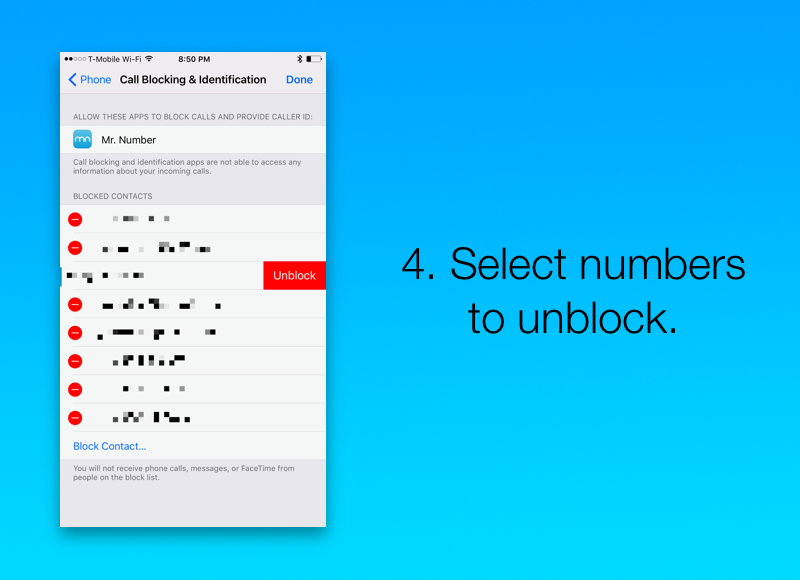
Tap the red symbol to the left of a number or email on the block list. You can only do this one at a time.
Finally, tap Unblock as it appears next to the contact. Doing so will allow phone calls, messages and FaceTime calls from that number.
One last tip: your block list is also available in your Messages settings as well as FaceTime settings. Just tap Blocked in either of these to get the same list as in Phone
ADVERTISEMENT
settings.

Thursday, July 12, 2018

5 Secrets for clicking the best iPhone X photographs 2018 Guide

As always Apple again took the hold of the market this year. We all know iPhone is the most gifted phone in the world. The new launches of iPhone 8, 8 plus, and X models have made massive sales and are being known for their amazing camera results. Though both iPhone 8 and 8 plus are loved by people, iPhone X is something next level due to its unique camera features.
iPhone X with face recognition, the missing main home button, and the camera features are making this smartphone way much popular than any other iPhone. Most people are still exploring the camera system of this device. All the pictures being clicked on this phone are exceptional and are being loved by the users! With this phone in hand, you can not only shoot pictures in Portrait mode, you can also expand portrait lighting, and utilize the completely remodeled back camera.

Related:

To help you shoot some really gorgeous pictures with your iPhone X, I have compiled these 5 secrets to take the best looking photos with your amazing phone. To find out these secrets, keep reading:

1: Zooming option in the Dark

I love this upgrade on iPhone X. It has made taking pictures in dark so much easier. Now you have the 2x lens in it, it works in low light. You can use both the lenses, no matter what are the lighting situations; your picture quality won’t be compromised.

2: Brighten any Scene with Flash

Usually, smartphone flashes are very harsh but Apple has introduced a new flash technology named as Slow Sync that shoots very beautiful and soft images by utilizing the phone’s innovative Quad-LED flash. It is suggested that this flash should be used in dim restaurants or after a sunset for best results.

3: Live Photo Effects

When you shoot live photos or a small video, it’s not completely a new feature that iPhone X has included, you will have a set of really nice effects using this superb technology. For example, like the DSLR camera features you can blur your background, generate a continuous Loop, or create a Boomerang which is very popular these days.

4: Portrait Modes

The Apple company made major developments in the portrait mode. The new iPhone X camera features just not have portrait mode with blurred backgrounds, it also has 5 new lighting modes for portraits, which includes natural light, contour light, studio light, stage lights and mono light (for black and white stage like photos). So, If you want to highlight your subjects, the photography level is up for you!If you accidentally deleted or lost videos on iPhone, first please check on the Recently Deleted folder. Alternatively, you can use the professional tool Gihosoft iPhone Recovery to recover deleted iPhone videos from Camera Roll or some apps.

5. Play with Burst Mode

For taking the best pictures, especially when you are traveling utilize the burst mode. You can shoot 10 photos per second with this outstanding burst mode of iPhone X. To utilize this camera feature, just hold the shutter icon for a while in your camera application. Sometimes photography is about shooting a short-lived moment.

6. How can we forget Video Modes?

There are various iPhone video modes that you can enjoy, exclusively when you are shooting a scene where this is some interesting movement or sound.
If you would like to capture something like clouds moving slowly in the sky you must go for the time-lapse mode in your iPhone X. If the scene you want to shoot is a bit fast, for instance, birds flying in the sky or landing fast in the water then you must try slow motion video mode.

Wednesday, July 11, 2018

Users Report Noticeable Battery Drain On iOS 11.4

If you have noticed a noticeable drop in your iPhone’s battery life after updating to iOS 11.4, then you are not alone. As 9to5Mac reports a large number of iPhone users are reporting a drop in battery performance with devices running iOS 11.4. According to users, the issue is mostly affecting the device when it is on standby, with battery dropping in abnormal amounts when the device is not in use.

Users on Apple’s discussion forums are seen discussing possible causes for this drop in battery performance with some speculating it may be due to a setting that may have been turned on after the update while others noting that on battery usage screen their device shows 50 percent of battery life was consumed by the Personal Hotspot feature, despite the feature being turned off.

If you accidentally deleted or lost videos on iPhone, first please check on the Recently Deleted folder. Alternatively, you can use the professional tool Gihosoft iPhone Recovery to recover deleted iPhone videos from Camera Roll or some apps.


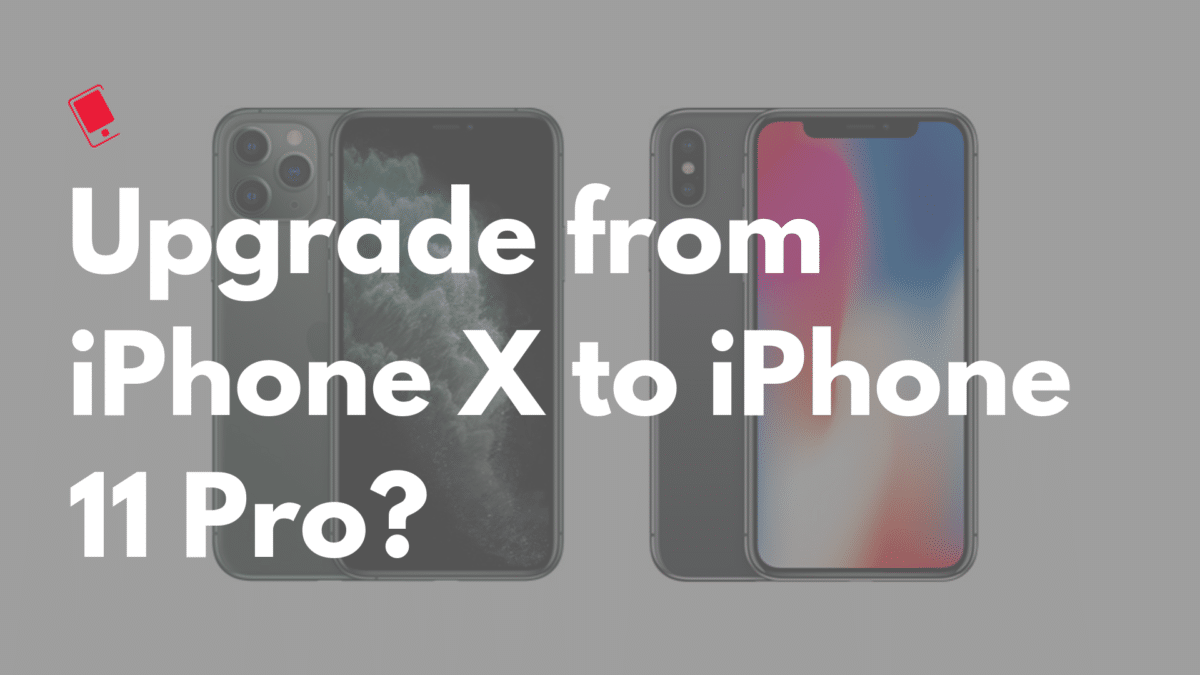
Should You Upgrade from iPhone X to iPhone 11 Pro?

Now that the iPhone 11 Pro is out, many iPhone X owners are wondering if they should upgrade to it or not. If you are in a similar dilemm...