Tuesday, July 24, 2018

App Admin – Downgrade any App Store app


HOW APP ADMIN WORKS


App Admin allows you to go back to the older version or build number of any App Store app. It is developed by UnlimApps developer Enea Gjoka.


You can downgrade or upgrade apps, manually input a build number and block future version updates.


Apart from these features, it also comes with a very mature database of versions and build numbers, something which is missing from other similar utilities.


Here’s how it looks like in action.

INSTALLATION AND USAGE


Although this tool is a bit buggy, we decided to take it for a test drive. We will use Snapchat as a lab rat to demonstrate how the downgrade works.


The installation tutorial is divided into two sections as the downgrade process is different for installed and new apps.
NEW APPS


Step 1 Go to the App Store and open the Search tab.


Step 2 Search for the app you want to downgrade or upgrade.


Step 3 Tap on the app’s name to access its App Store page. Now, select the GET or the “Cloud” icon. Be sure not to long press any of these buttons.
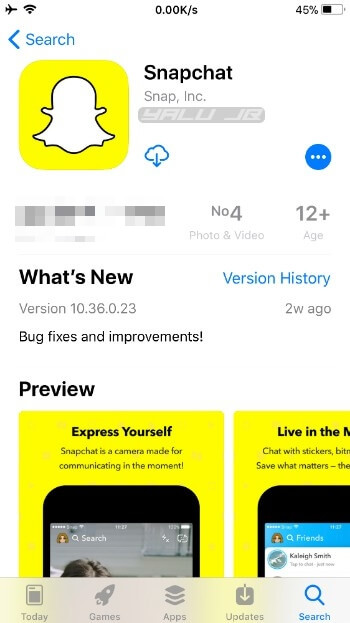


Step 4 At this stage, App Store generally downloads the latest of the app. However, since we are using App Admin, App Store will display two options –


Continue – Downloads the latest version of the app.


Downgrade – Downgrades the app to an older version/build number.
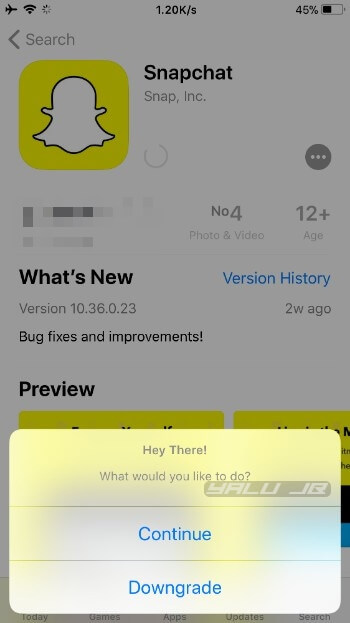


Step 5 Select Downgrade to access the list of all the older versions of the app. Select the version you want to go back to.
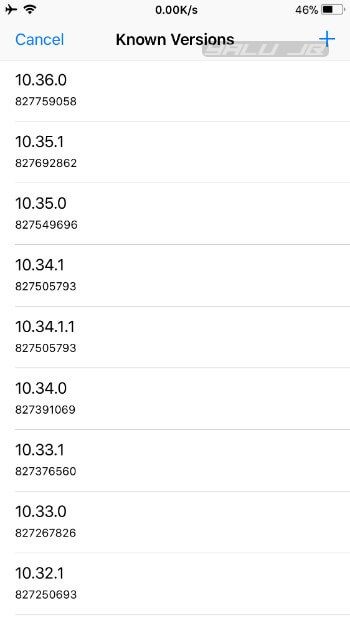


Step 6 (Optional) Alternatively, you can manually input the build number or the software version external identifier. Tap OK to start the downgrade.


For example, inputting 823821159 will upgrade Snapchat to its latest version.
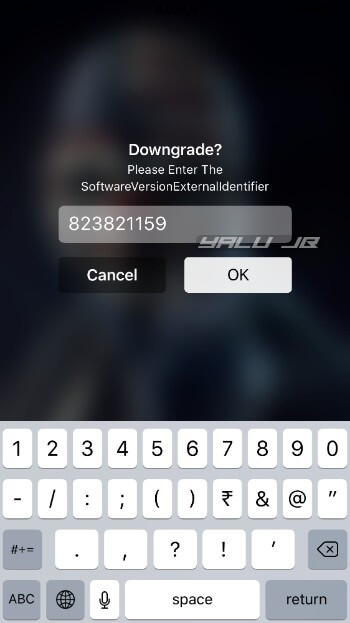


Step 7 Wait for the App Store to fetch and install the app.
INSTALLED APPS


Step 1 Open the App Store app and go to the Updates tab.


Step 2 Open Snapchat’s page. If you want to downgrade another app, tap on it to open its App Store page.


Step 3 Long press the OPEN button to access App Admin’s menu. It will now display two options –


Block All Updates – Blocks all App Store updates for the installed app.


Downgrade – Downgrade the app to an older version/build number.


Step 4 If you already on the desired version and don’t want to install future updates, select Block All Updates.


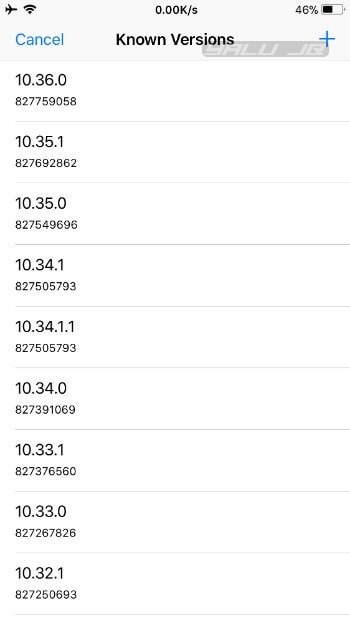
Step 5 (Optional) If you want to downgrade an already installed app, tap on Downgrade. Select the desired version from the “Known Versions” list.


DOWNLOAD APP ADMIN CYDIA TWEAK


In all honesty, it is miles ahead of AppStore++, the only App Admin alternative available on Cydia.


Unlike AppStore++, it also lets you downgrade existing apps along with other options. Highly recommended.


App Admin is available for download on https://beta.unlimapps.com/ for free. It is compatible with iOS 11-11.3.1-11.4 Beta 3 and Electra jailbreak.


If the beta version doesn’t work on your device, try downloading the latest alpha version. It is available on UnlimApps’ alpha repository (https://alpha.unlimapps.com).If you lost videos from iOS Camerall Roll which are nowhere to download again, you can use Gihosoft iPhone Data Recovery to get back deleted videos from iOS device including iPhone, iPad and iPod Touch.


Jihosoft iPhone Backup Extractor Extract and recover all types of data from iPhone backup files, such as camera roll photos, videos, SMS, contacts, reminders, WhatsApp, and etc.

Monday, July 23, 2018

iMobie PhoneClean Pro License Key & Crack is it Safe?


iMobie PhoneClean Pro License Key & Crack is it Safe?


Is PhoneClean Safe?


The official version of iMobie PhoneClean Pro is 100% safe to install and use. You can verify that by scanning it with your favorite antivirus program. It will not find any malware or virus. The cracked version on the other hand is not safe to use and may contain virus or malware that your antivirus program will detect.
Truth About iMobie PhoneClean Pro Crack & License Code Online


If you are downloading iMobie PhoneClean Pro from a website other than the official one, then you are likely to find iMobie PhoneClean crack and registration code. These are two parts of the software that are related to this software being registered and available for use.
PhoneClean Pro Crack/Torrent


As mentioned above, cracked version of any software is not safe to use because it may contain a virus or malware. The same is the case with iMobie PhoneClean Pro crack. While it may seem tempting to download the crack and use the software for free, you are likely to encounter several problems due to using the cracked version. Virus/malware is the primary reason to avoid it.
PhoneClean Pro License Code


iMobie PhoneClean needs a license code in order to work. The license code available on other websites has been used too many times. As a result, when you try to register the software with that code, the registration will fail.
Why Never Use Crack Version or Registration Code Online?


There are many disadvantages of using cracked version of a software or an unofficial registration code. Following are some of those disadvantages:


There is no security guarantee when you are using a cracked version of the software. The purpose of a crack is to unlock the features of the software and allow users to use it without purchasing. The crack may stop working at any time.


There are no scheduled upgrades available for cracked versions of the software. Without upgrades, you will miss out the new features and bug fixes.


Since you did not purchase the software officially, you will not receive any support from the software’s developers if you are using a cracked version.


If you lost videos from iOS Camerall Roll which are nowhere to download again, you can use Gihosoft iPhone Data Recovery to get back deleted videos from iOS device including iPhone, iPad and iPod Touch.

Jihosoft iPhone Backup Extractor Extract and recover all types of data from iPhone backup files, such as camera roll photos, videos, SMS, contacts, reminders, WhatsApp, and etc.

Gihosoft Android data recovery Free is a super awesome software specialized in Android file recovery. With this program, you are able to recover deleted photos, music, videos, messages, contacts, call logs, WhatsApp messages, Viber chat history and more from Samsung, Huawei, LG, HTC, Motorola, Google, Oneplus, Sony, Lenovo, ZTE and other Android devices directly. Meanwhile, this Android data recovery software is available for both Windows and Mac platforms.

Thursday, July 19, 2018

How to reinstall or Repair Mac Mojave, Sierra, EI Capitan

How to reinstall or Repair Mac Mojave, Sierra, EI Capitan
Steps for reinstall or Repair Macos Mojave, Sierra, EI Capitan


Reset all factory settings by erasing your mac and then reinstall all in-built apps and tools, Settings.


Prerequisite: Before start reinstall or Repair Mac OS X, Keep all useful files and folder in external drives. Time of repair/ reinstall OS X, Power adapter must be connected and turn on.


Step 1: Go to the Apple Menu > Restart.


Step 2: Before start again, on gray screen press command and R key continuously.


Step 3: Next, Choose the disk utilities > Continue.


Step 4: Now, Go with your Startup disk and Click on erase option.


Step 5: Then, From the format menu, click on Mac OS Extended. Place the name and Erase drive.


Step 6: Once you erased, Disk Utility > Quit disk utility.


After that, you can install new OS X on your Mac.


Install New OS X – Mojave, Sierra, Capitan, Yosemite, Mavericks


in the process of reinstall you device connected with internet.


Go to the Apple Menu bar > Restart. you Mac will restart and Press Command + R.


Go with Reinstall OS X > Continue.


Follow the on screen OS X installation process, in which disk you want to install OS X.


Once setup is done you can new enjoy error free new OS X On Mac.


Here’s How to Clean Install Mac Mojave and also learn Tips to Speed up Slow Mac Mojave


In reinstall or Repair Mac OS X Mojave, High Sierra, EI Capitan, Yosemite, you don’t need any external bootable DVD or USB like windows. Your Mac automatically extract OS X saved on drive.Jihosoft iPhone Backup Extractor Extract and recover all types of data from iPhone backup files, such as camera roll photos, videos, SMS, contacts, reminders, WhatsApp, and etc.
Gihosoft Free iPhone Data Recovery is a professional iPhone Data Recovery software to get back all your lost text message, photo, video, call history, note, contact and more from iPhone/iPad/iPod Touch.

Tuesday, July 17, 2018

Front panels of iPhone 9, iPhone 11 and iPhone 11 plus leakedent


Front panels of iPhone 9, iPhone 11 and iPhone 11 plus leaked
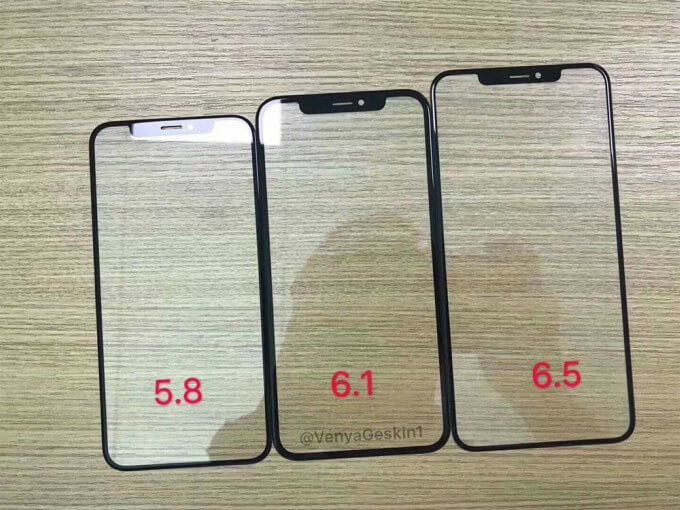
HOW THE FRONT PANELS OF THE UPCOMING IPHONES LOOK LIKE


This leak suggests that the iPhones of 2018 will inherit their design from the iPhone X, with screens that occupy practically the entire front of the device, and with the notch at the top.


Apple will also finally abandon the Home button and the fingerprint scanner and for good reason too.


The notch will house the same internals as in the current iPhone X, such as Face ID, the front camera, and sensors. The size of the notch will also be the same for all three models in order to simplify the production process.


Interestingly, the 6.1-inch panel in the middle has thicker bezels than that of the 5.8-inch and 6.5-inch models. This indicates that the low-cost 6.1-inch iPhone model will have slightly different aesthetics.


There are also rumors that the bezels of this model will be two millimeters wide.
TWO OLED MODELS AND ONE LCD MODEL ARE IN THE OFFING


Jihosoft iPhone Backup Extractor Extract and recover all types of data from iPhone backup files, such as camera roll photos, videos, SMS, contacts, reminders, WhatsApp, and etc.


Gihosoft Free iPhone Data Recovery is a professional iPhone Data Recovery software to get back all your lost text message, photo, video, call history, note, contact and more from iPhone/iPad/iPod Touch.


This leak confirms earlier rumors – Apple will release three different smartphones this fall.

Rollectra unjailbreak tool released for iOS 11


After a long wait of seven months, Electra Team has finally released SemiRestore (Rollectra) for iOS 11. You can download this unjailbreak tool for your iPhone and other devices below.
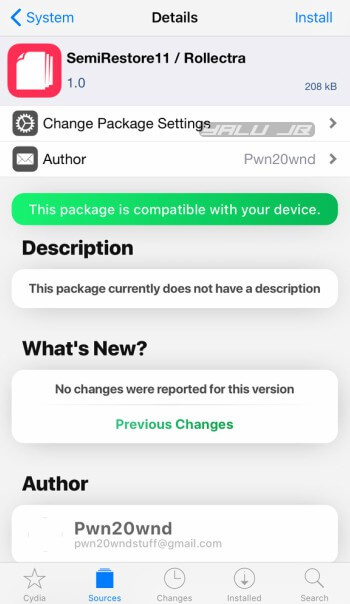
SemiRestore11 / Rollectra is an on-device unjailbreak utility for Electra jailbreak. It is developed by Electra Team member Pwn20wnd.
Here’s how this tool works –
  • It utilizes the APFS snapshot of the system partition to restore the system partition to its stock state.
  • Afterwards, it destroys all data that is not present in the system partition of the filesystem without an iTunes restore.
SemiRestore11 Rollectra
Remember, Rollectra reverts all changes made to your device’s filesystem along with user data. Therefore, the developers recommend that you perform a full backup of your device via iTunes before using this tool.
Table of Contents

WHY IS ROLLECTRA USEFUL?

Since Jay Freeman no longer updates Cydia Eraser, Rollectra is the perfect alternative for iOS 11 users.
It is immensely useful if a tweak messes up your device or you ruin everything by modifying a filesystem setting.
As soon your device goes back to its stock state, you can then start afresh and jailbreak it. Or you could just keep your device in its original state if jailbreaking is not for you.

WHICH IOS VERSIONS ARE COMPATIBLE?

COMPATIBLE

As of now, only the devices that are running Electra1131 are compatible. Here’s the full list of supported firmware versions.
  • 11.3
  • 11.3.1
  • 11.4 Beta 1
  • 11.4 Beta 2
  • 11.4 Beta 3

INCOMPATIBLE

The developer will add support for older versions in the future versions of Rollectra. If you try to install it on these versions, Cydia will throw an error.
  • 11.0
  • 11.0.1
  • 11.0.2
  • 11.0.3
  • 11.1
  • 11.1.1
  • 11.1.2
  • 11.2
  • 11.2.1
  • 11.2.2
  • 11.2.5
  • 11.2.6

HOW TO UNJAILBREAK IOS 11 WITHOUT A COMPUTER USING SEMIRESTORE11 / ROLLECTRA

Step 1 Open Cydia.
Step 2 Go to the Search tab and search for “SemiRestore11”.
Step 3 Select the appropriate result from the list.
Step 4 Install this package from Packix Cydia repository. Once the installation process finishes, the app should appear on your home screen.
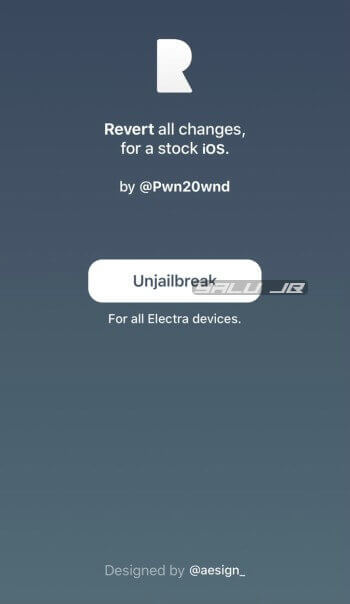
Step 5 Launch SemiRestore tool from the home screen.
Step 6 Tap Unjailbreak to start the unjailbreak process.
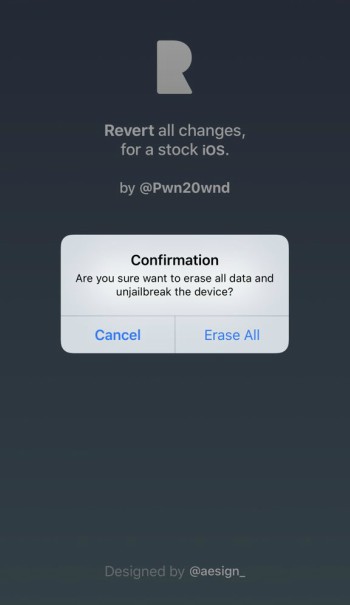
Step 7 SemiRestore will now display a confirmation message before it reverts the changes. Tap Erase All to confirm.
Step 8 Wait for it to restart your device. Once the progress bar hits completion, your device will reboot in unjailbroken state.

ERRORS AND FIXES

  • Some users are having a hard time getting past the Apple logo reboot screen. If your device gets stuck on the Apple logo, simply hard reset it.
  • If you can’t install the package on your iPhone or iPad, check your firmware version and its compatibility status.Gihosoft Free iPhone Data Recovery is a professional iPhone Data Recovery software to get back all your lost text message, photo, video, call history, note, contact and more from iPhone/iPad/iPod Touch.


Monday, July 16, 2018

How to Transfer Files from Mac to iPhone without iTunes 2019 Guide


How to Transfer Files from Mac to iPhone without iTunes 2019 Guide


Part 1: Only Transfer Photos from Mac to iPhone with iTunes


Transferring files between your Mac OS and your iPhone can come easily with the use of iTunes. iTunes installed on your Mac allows you to transfer a limited collection of media files. However, using iTunes to sync Mac files on your iPhone will inevitably result in data synchronization on your iPhone.


To ease the transfer process, it is better to update iTunes on your Mac to its latest version to avoid issues such as "iPhone does not connect to iTunes". Go to the App Store > Updates and your Mac will automatically check for updates. If a new version of iTunes or Mac OS is available, click to install and update your iTunes to the latest version.
Follow the listed steps below to sync Mac files on your iPhone with iTunes:


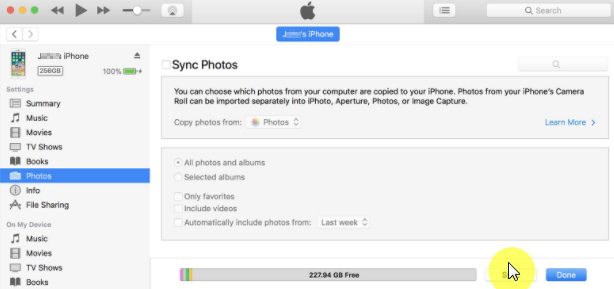
Step 1: Connect your iPhone to Mac with a USB cable. If it does not open automatically, you need launch iTunes.


Step 2: Tap the Device button and choose Photos.


Step 3: Tick the box next to Sync Photos. Then scroll the Copy Photos drop-down menu and choose your selection.


Step 4: Tap Sync to start importing Mac photos to your iPhone.


Part 2: Why You Need D-Port Pro instead of iTunes


As earlier said, syncing your data files from your Mac to your iPhone can be really tasking when you have to use iTunes. That means you have to use your data which results to the extra cost. But you can cut away the annoying things while using iTunes. D-Port Pro will help you to copy your files to avoid syncing and allows you to even copy wirelessly. It is the best software available for transferring your files from Mac to iPhone with ease. Here are few reasons why using iTunes can be so much pain.


If you accidentally deleted or lost videos on iPhone, first please check on the Recently Deleted folder. Alternatively, you can use the professional tool Gihosoft iPhone Recovery to recover deleted iPhone videos from Camera Roll or some apps.
Export and save data from iDevices/iTunes backup/iCloud backup.


Only back up and restore data related to Messages, WhatsApp, WeChat.

Saturday, July 14, 2018

Update iOS Without WiFi? 3 Ways Offered (iOS 11.3 Supported) 2019 Guide


Update iOS Without WiFi? 3 Ways Offered (iOS 11.3 Supported) 2019 Guide
1. Can You Update iOS without Wi-Fi?


If you're not having a proper Wi-Fi connection or don't have a Wi-Fi at all to update iPhone to the latest version iOS 11.3, don't bother, you can certainly update it in your device without it. However, please note that you will need other internet connection than Wi-Fi for an update process. Please make sure your computer has been connected to network or you have mobile data to proceed for the process. Also, please check if your device is having enough storage to get the newest update since the process eats lots of space.
2. Update iOS Using iTunes without Wi-Fi


The first way through which you can update iOS without Wi-Fi is using iTunes. Please ensure that you have a backup of your data before proceeding to the steps since the existing data might get lost after the updating. In addition, be certain that iTunes has been updated to the latest version on your PC. Now, follow the steps to update your iPhone into latest iOS which is iOS 11.3 for now.


Launch iTunes in PC and make connection between iPhone and PC using USB cord.


Choose the device icon at the top left and hit on 'Summary' tab.


Click on 'Check for Update' now followed by 'Download and Update'.


Type in passcode if prompt and your device will get updated in a while.


3. Update iOS Using Cellular Data


As said above, updating your iPhone to the newest iOS will always calls for an internet connection, so here is the next way to update iOS without Wi-Fi and that is updating via cellular data. Make sure to have enough data plan in your device since the updating process consumes a lot of data. Also, ensure that your device's battery is not less than 50%. Once checking all this, read the following steps to update your iPhone.


Firstly, turn on the cellular data and open 'Settings' in your device.


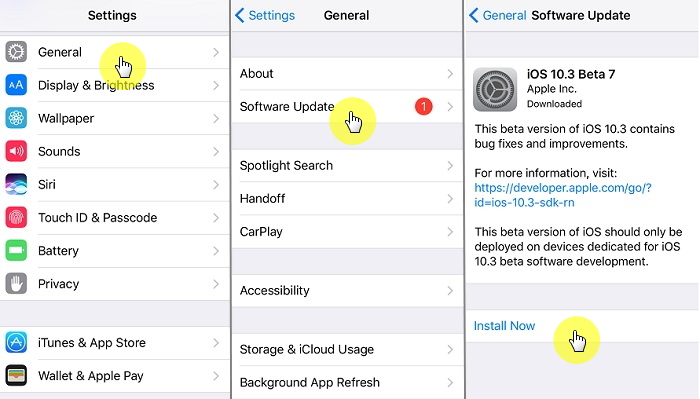
Go to the 'General' option and tap it.


Now, look for 'Software Update' and tap on it. Your iPhone will follow your command and will look for the update and will inform you. After this, tap on 'Download and Install' button and follow the prompts.


Now, the updating process will begin and on completion of downloading, a pop-up will ask you to install the iOS right now or later. Tap 'Install' and your installation will start. Now iOS 11.3 is available.


While installing, your iPhone's screen will go black showing Apple logo and the installation status. On finishing of installation, the device will restart and then you will be asked to enter the passcode. Type in your passcode and you're good to go. You can use your device now with the latest iOS update in it.If you accidentally deleted or lost videos on iPhone, first please check on the Recently Deleted folder. Alternatively, you can use the professional tool Gihosoft iPhone Recovery to recover deleted iPhone videos from Camera Roll or some apps.


Should You Upgrade from iPhone X to iPhone 11 Pro?

Now that the iPhone 11 Pro is out, many iPhone X owners are wondering if they should upgrade to it or not. If you are in a similar dilemm...