Tuesday, January 15, 2019
Reset It When You Are Locked Out of Apple ID
Reset It When You Are Locked Out of Apple ID
There are a few methods for resetting your Apple ID depending on the type of security you chose for your apple account. These methods are as follows:
Two-factor Authentication
Two-step Verification
Email, Password and Security Questions
1 Two-factor Authentication
This requires a trusted Apple device to carry out the reset. If your trusted device is an iPhone,
Launch the “Settings” app.
Tap [your name], then “Password & Security”.
Tap “Change Password” and follow the onscreen steps.
2 Two-step Verification
Go to your Apple ID account page and click "Forgot Apple ID or password."
Enter your Apple ID and select the option to reset your password, then click “Continue”.
If you have forgotten your Apple ID, enter your Recovery Key for two-step verification.
Select a trusted device and a verification code will be sent to you.
Enter the verification code.
Create a new password, then select Reset Password.
3 Email, Password and Security Questions
Go to your Apple ID account page and click "Forgot Apple ID or password."
Enter your Apple ID.
If you have forgotten your Apple ID, select the option to reset your password, then click “Continue”.
How do you want to reset your password?
For security questions, select "Answer security questions" and follow the rest of the steps.
For email, select "Get an email". An email will be sent to your primary or rescue email address.
If you did not get an email and you are asked for a Recovery Key, two-factor authentication or two-step verification should be used.
It is advisable to always choose passwords that cannot be easily guessed by unauthorized folks but at the same time, easy to remember. However, if you have issues with your Apple ID, you can always gain access back into your device through the information provided in this article.
Sponsor ads:
Gihosoft Free iPhone Data Recovery:https://www.gihosoft.com/iphone-data-recovery-free.html
Gihosoft iPhone Data Recovery Free
Free iPhone Data Recovery Software for Windows/Mac
Recover up to 12+ types of files, including contacts, SMS, photos, WhatsApp, Viber, notes, etc.
Restore lost data from iOS devices directly or from iTunes and iCloud backup
Recover iPhone data lost due to iOS upgrade/jailbreak, accidental deletion, device lost or broken
Support all the latest iPhone, iPad and iPod Touch
Both Free and Pro version.
If you lost data after you updated to a new iPhone, you can always use Gihosoft iPhone Data Recovery to get the data back from the old iPhone or backup.You may also like: iphonerecovery.com
If you use android phones, please choose Gihosoft Android Data Recovery.
With Gihosoft Android Data Recovery, no longer afraid of data loss!
Must read:Youtube video downloader for pc
Gihosoft RePicvid Free Photo Recovery Software provides a free photo recovery software for windows to help users recover the deleted or lost photo for free.
Jihosoft Android Data Recovery: the best Android Data Recovery software for Windows and Mac to recover deleted contacts, messages, photos, videos, WhatsApp and etc from Android devices.Tips:How to transfer messages from iPhone to iPhone
jihosoft Free iPhone Data Recovery

Sunday, January 13, 2019
2019 iPhones May Support Wi-Fi 6
Apple’s newest iPhones, which are expected to launch later this year, are already rumored to feature quite a few noteworthy changes.
And now one analyst has weighed in on the subject, saying that he believes Apple will include the Wi-Fi 6 standard for its upcoming lineup. This is from analyst Blaine Curtis of Barclays, and the comment came during a CES wrap-up. Unfortunately, that’s all we have to go on here, as there isn’t much in the way of additional information.
Wi-Fi 6 is also known as 802.11ax. It’s meant to replace the current 802.11ac standard, and should be finalized sometime this year. When it is finalized and out there in the real world, Wi-Fi 6 (which will be the public name, in an effort to reduce confusion from this point on), it will offer higher capacity, better power efficiency in devices, overall better performance in congested environments, and higher data rates, among other improvements.
The inclusion of faster and more stable Wi-Fi certainly makes sense across the board as an important addition for a smartphone launching in 2019, and Apple hasn’t been shy about early adopting these technologies in the iPhone. Moreover, the fact that Apple is expected not to launch a 5G-capable iPhone until 2020, which can tap into faster mobile network data speeds, this may be one element that helps set the iPhone apart from other devices launched later this year.
Earlier today we heard that the flagship 2019 iPhone is going to adopt a triple camera design on its back, and that the iPhone XR is going to get a dual camera as well.
Like this post? Share it!Sponsor ads:
Gihosoft Free iPhone Data Recovery:https://www.gihosoft.com/iphone-data-recovery-free.html
Gihosoft iPhone Data Recovery Free
Free iPhone Data Recovery Software for Windows/Mac
Recover up to 12+ types of files, including contacts, SMS, photos, WhatsApp, Viber, notes, etc.
Restore lost data from iOS devices directly or from iTunes and iCloud backup
Recover iPhone data lost due to iOS upgrade/jailbreak, accidental deletion, device lost or broken
Support all the latest iPhone, iPad and iPod Touch
Both Free and Pro version.
If you lost data after you updated to a new iPhone, you can always use Gihosoft iPhone Data Recovery to get the data back from the old iPhone or backup.You may also like: iphonerecovery.com
If you use android phones, please choose Gihosoft Android Data Recovery.
With Gihosoft Android Data Recovery, no longer afraid of data loss!
Must read:Youtube video downloader for pc
Gihosoft RePicvid Free Photo Recovery Software provides a free photo recovery software for windows to help users recover the deleted or lost photo for free.
Jihosoft Android Data Recovery: the best Android Data Recovery software for Windows and Mac to recover deleted contacts, messages, photos, videos, WhatsApp and etc from Android devices.Tips:How to transfer messages from iPhone to iPhone
jihosoft Free iPhone Data Recovery
Sunday, December 30, 2018
2019 iPhone Apps to Take Your Instagram Stories to the Next Level

Instagram stories can be beautified with chic and elegant templates with Unfold app. This app features a wide variety of templates and fonts along with the photo and video support so that you never compromise on how your post looks. It allows you to share your video in high resolution to other platforms seamlessly.
The best part of the app is that it never prompts you for an account. You can just download it and start modifying your Instagram Stories. Unfold is an all-rounder app which provides you with all the features from designing, editing, creating collages, adding custom font, borders, and texts to sharing it with your friends via other apps.
This app is best for creating unified and organized stories that suits to promote your brand across your followers on Instagram.
Download: Unfold
2. Canva
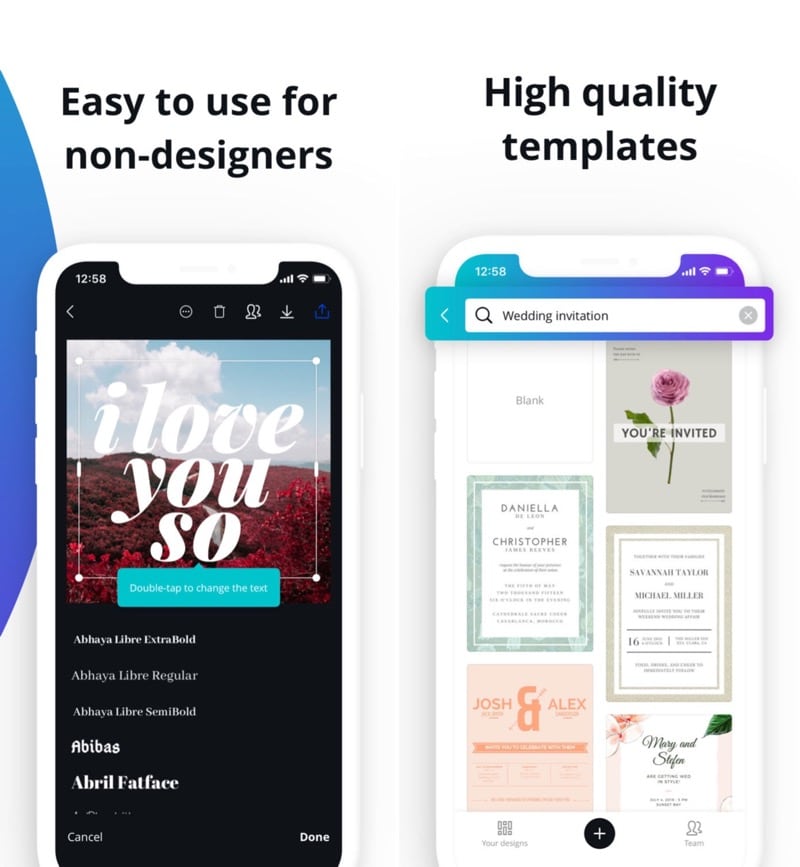
Canva is a user-friendly and a very fun app to design your Instagram Stories and give it a classy and attractive look.
You can create stunning graphic designs without the need to learn graphic design skills. It is available on Android device as well as on the web so you can design, edit and share on the go, anytime and anywhere.
Media graphics can be used to amplify your posts on any social media handle other than Instagram.
It features over 60000 templates for you to choose from. With a variety of designs, fonts, photo editing features and over 1 million stock photos to choose from the library.
If you have got Canva, you practically don’t need any other app as it provides all the features required for you to make your work easier as well as make your stories look magnificent.
Download: Canva
3. InShot
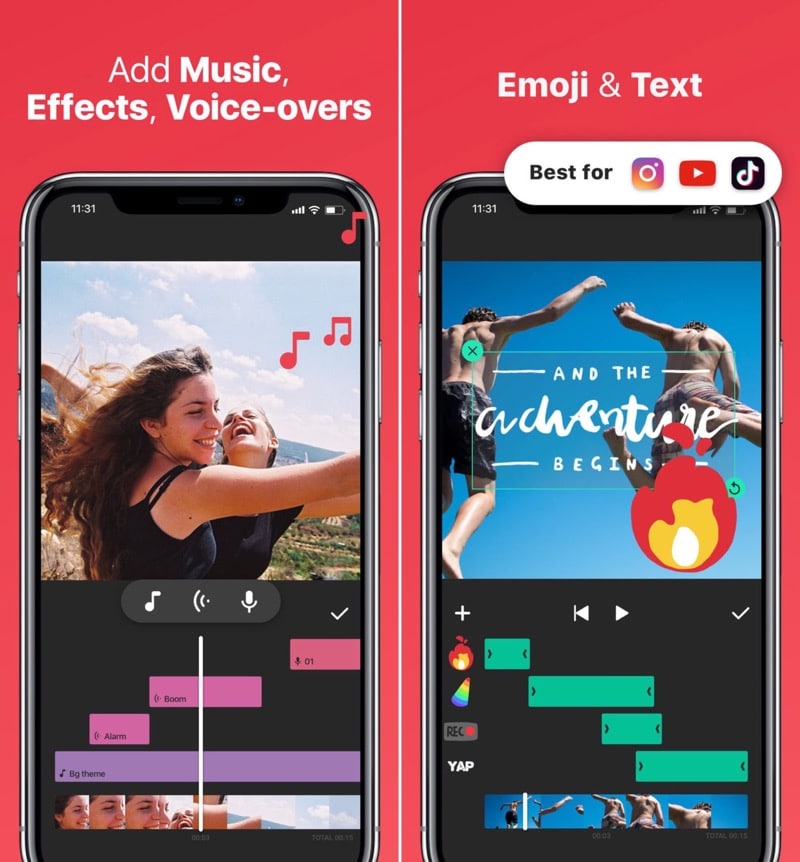
Now make Video editing easier and hassle-free with InShot. Setting up a video according to the Instagram aspect ratios can be a real task. InShot allows you to set up a perfectly non-cropped video setting your own aspect ratios.
You can trim or cut videos in the length you need. You can also merge multiple videos into one, and edit and trim it without compromising on the video quality. You can add background, text, stickers, and music to your video and add special effects to make your video look amazing. It beholds many other features which you can explore by installing it.
Download: InShot
4. A Design Kit
This app is specially designed for iPhone users. This app allows you to make and create amazing videos for your Instagram Stories. It is a super simple app which is easy to use.
It contains over 30+ modern font designs and realistic brushes that can draw in textures and colors. 120+ designs to choose from and a number of background effects. A great app to add more color and life to your amazing stories and attract traffic to your brand page on Instagram.
Download: A Design Kit
5. Adobe Spark Post
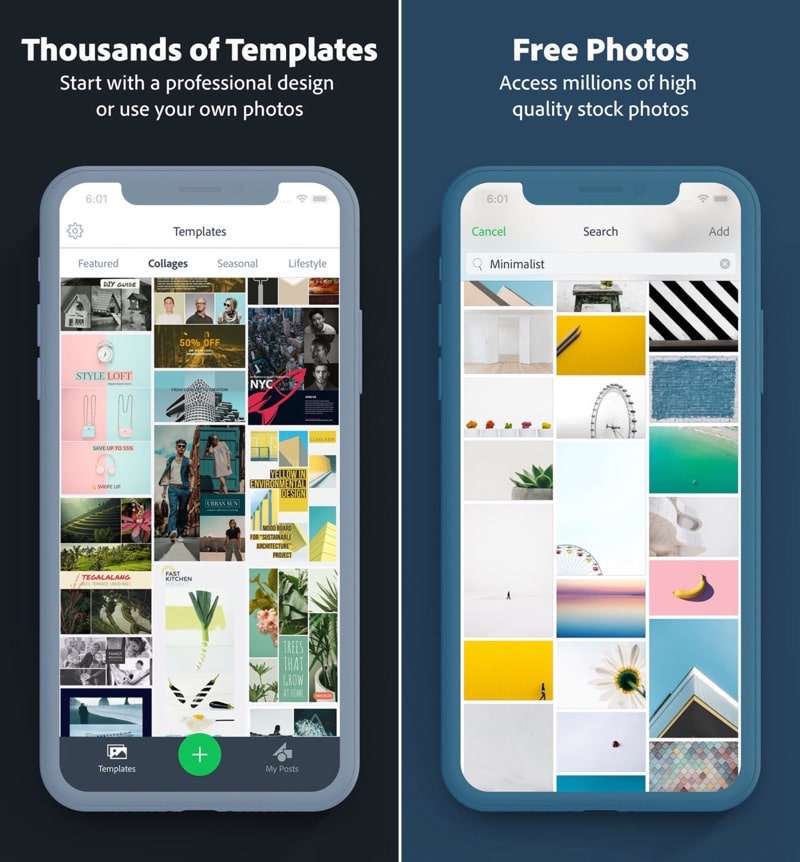
Adobe Spark Post is now at your rescue to overcome all the difficulties you face to design your Instagram Story content. This app which is renowned for its professional editing software is now fun and easy to use on your iPhone.
Spark Post can instantly spark up your story with its numerous features inhabiting various designs, fonts, backgrounds, editing tools, magic layouts, cutouts, filters and whatever you name it and Spark Post has it!
It has also made sharing easier via various apps. It has got many new and refined features in its new version. Get this app instantly to make your posts super magnificent and increase your fan followers.
Download: Adobe Spark Post
6. Storeo
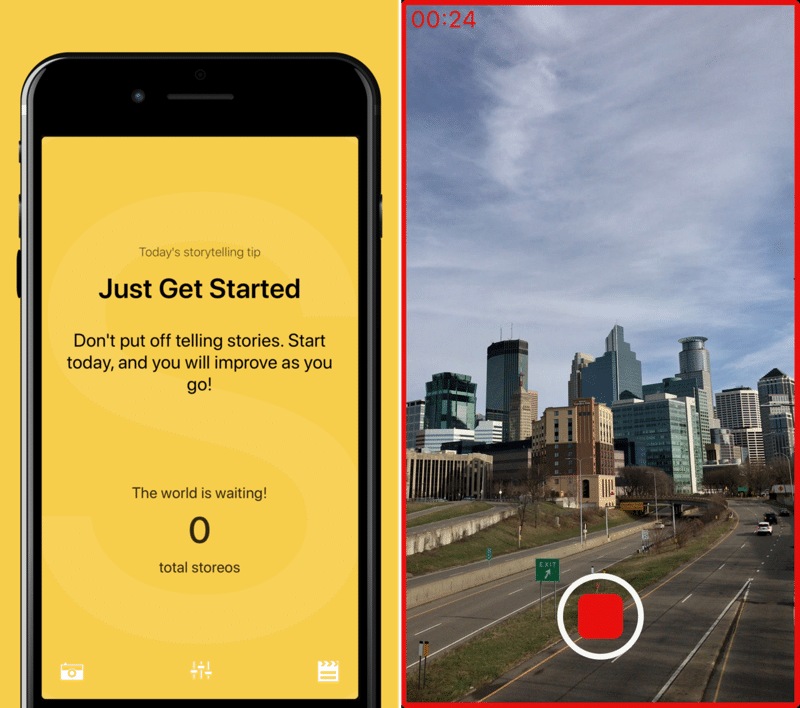
Storeo is a great and trending iOS app. This app is very very useful for the ones who want to upload a longer video in one shot without stopping.
This app slices the video into 15 seconds slots for uploading and viewers can view it as one video without breaks. It has proven to be very convenient as it allows you to upload videos of longer time duration seamlessly without any interruption or cut-outs. It allows you to share the video on Facebook as well.
You can totally avoid the hassles of trimming and editing videos now with Storeo.
Download: Storeo
Sponsor ads:
Gihosoft Free iPhone Data Recovery:https://www.gihosoft.com/iphone-data-recovery-free.html
Gihosoft iPhone Data Recovery Free
Free iPhone Data Recovery Software for Windows/Mac
Recover up to 12+ types of files, including contacts, SMS, photos, WhatsApp, Viber, notes, etc.
Restore lost data from iOS devices directly or from iTunes and iCloud backup
Recover iPhone data lost due to iOS upgrade/jailbreak, accidental deletion, device lost or broken
Support all the latest iPhone, iPad and iPod Touch
Both Free and Pro version.
If you lost data after you updated to a new iPhone, you can always use Gihosoft iPhone Data Recovery to get the data back from the old iPhone or backup.You may also like: iphonerecovery.com
If you use android phones, please choose Gihosoft Android Data Recovery.
With Gihosoft Android Data Recovery, no longer afraid of data loss!
Must read:Youtube video downloader for pc
Gihosoft RePicvid Free Photo Recovery Software provides a free photo recovery software for windows to help users recover the deleted or lost photo for free.
Jihosoft Android Data Recovery: the best Android Data Recovery software for Windows and Mac to recover deleted contacts, messages, photos, videos, WhatsApp and etc from Android devices.
jihosoft Free iPhone Data Recovery
Tips:
How to transfer messages from iPhone to iPhone
7. CutStory
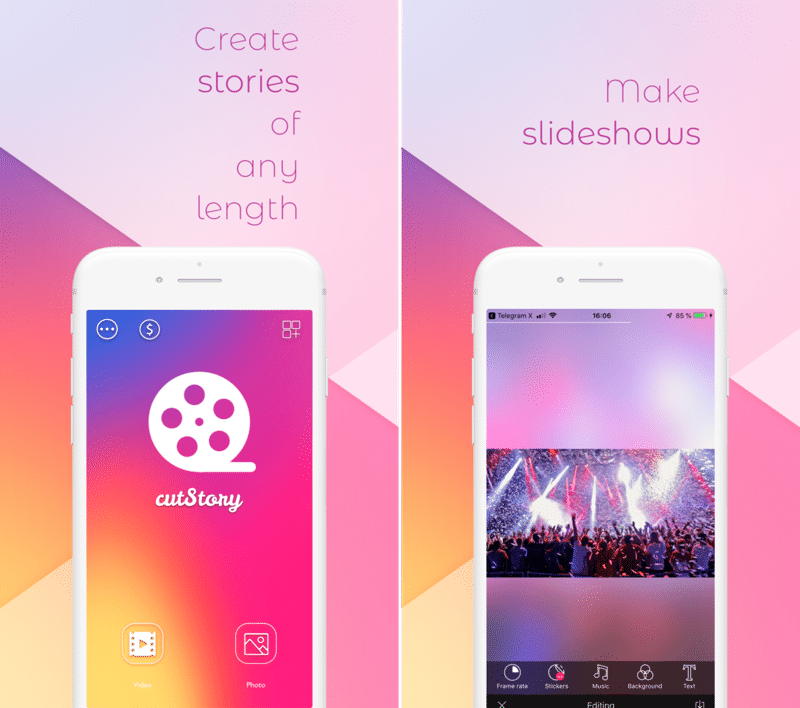
CutStory makes uploading lengthy videos easy. You can select any old video from your gallery and also add multiple clips filmed over the last 24 hours and CutStory will help you upload it instantly on your Instagram Story.
It posts all the videos in chronological order so there’s no mess at the time of uploading. It also has features of adding music, background, stickers, and texts on your video to make it beautiful and a joy to watch.
It supports all video formats and videos are exported without compression so you can be relieved about the video quality being jeopardized. Get this app to make life simpler and your stories better.
Download: CutStory
8. Hyper Type

Thinking about making your Instagram Stories more eye-catching? Here is HyperType to the rescue. You can make your videos look more attractive now with fancy scripts and fonts.
Hypertype provides a variety of special effects and typographic enhancers which are very easy to apply and makes your videos look funkier. It has got numerous animated fonts and texts and also editing tools to make your videos look better with filters and also you can add music and adjust the timing of your video all in just one app.
It surely adds on an oomph-factor to the overall look of your videos, hence raising your engagement.
Download: Hyper Type
9. 8mm

8mm is one of the upcoming and popular apps used for creating Instagram Stories. This app is popular for giving the videos an antiquated and vintage look. The feel of the retro movies comes to life with its distinct and variety of vintage filters and effects.
This app allows you to record a video by choosing any of the given vintage filters directly and uploading it instantly on Instagram. The different effects of a retro feel, the dust and scratches, and flickering, light leaks and frame turbulence and the mellow light effects are a treat to someone who loves the 90s retro feels.
Download: 8mm
10. Magisto

To yield better videos and increase the brand value of your page, Magisto can prove to be an apt application. If you don’t have much time to waste on editing stories over 2 or 3 different apps, then Magisto is the best possession for you as it contains all the features that are required for making your video better as well as it is super easy to use.
It can cut-short editing time because of its simple interface and numerous features. It can also slideshow or make a video collage if you just have photos. It has been proven to be the best for professional uses over 90 million users. You can instantly share your videos over other social media handles as well with great video quality.
Download: Magisto
11. Over

Looking out for the perfect brand-building Instagram tool? Over is one of the best apps for the job.
It has a professional touch to it as well as the comfort of using it without much conjecture. It features millions of templates and overlay texts and fonts to emphasize the look and effects of your video. It is the best app for campaign posters and advertisements of a brand product.
There is a hub of customizable templates to offer to you with great editing tools and effects and graphics for your video or photos collage. It surely has made video making and editing fun and also raises the elegance quotient of your Instagram page.
After all, Instagram has made marketing on social media wonderful and easy as you can reach out to millions at a time, and so marking your way up is equally important through your Instagram stories and videos and over fulfills all of it.
Download: Over
Friday, December 28, 2018
How to Unlock iPhone without SIM Card
Method 1: Activate Your iPhone Using Someone Else’s SIM Card
If you have access to someone else’s SIM card, this is probably the fastest method of activating your iPhone. With that being said, you will need a few different things before you can use this method:
a) You will need the SIM card of a friend. If your phone is locked to a specific carrier, you may need to find a friend who also uses that carrier.
b) Access to a Wi-Fi Network.
If you have both of these things, you can quickly and easily learn how to unlock iPhone without SIM card. Here’s how:
Step 1: Using a pin, remove the SIM card from the other phone and put it into yours.
Step 2: Log on to your Wi-Fi network and follow the setup options.
Step 3: Wait for phone to activate and return the SIM card to your friend.
This will allow you to use Wi-Fi and any apps on your iPhone (you just won’t be able to make phone calls or send text messages).
Method 2: Activate Your iPhone Using iTunes
If you don’t have a friend who is willing to lend you their SIM card, or you can’t find someone who uses the same carrier, you can also activate your iPhone using iTunes. The benefit of using iTunes is that you don’t have to have Wi-Fi access to learn how to unlock iPhone without SIM card. Here’s how to do it:
Step 1: Download the most up-to-date version of iTunes.
Step 2: Connect your phone to your computer.
Note: If you receive a message saying “there is no SIM card installed”, it means that your phone is locked to a specific carrier and you will need to use method #1 to unlock your iPhone.
Step 3: If phone isn’t locked, you will be prompted with a set of instructions. Follow them to activate your iPhone.
Again, once your phone is activated you will be able to use it to listen to music, search the internet, or use related apps.
Bonus Tips:
Restoring Lost Photos and Videos from iPhone
If you have deleted some of your pictures or videos from your gallery, then there is a straightforward way to Recover Deleted Files iPhone back.
After you delete the media files from your gallery, be it photos or videos, then you must know that iOS has a feature that the deleted media files doesn’t get deleted immediately, but it gets compiled to a temporary folder from where it gets deleted after 30 days. If you lost data after you updated to a new iPhone, you can always use Gihosoft iPhone Data Recovery to get the data back from the old iPhone or backup. Should you wish to recover these files, you must go to that “recently deleted” folder and retrieve these files before 30 days.
If you use android phones, please choose Gihosoft Android Data Recovery.
Worth reading:Best youtube downloader online download youtube 1080p
Must Read:
How to transfer messages from iPhone to iPhone
Tips:
How to transfer messages from iPhone to iPhone
Must read:icloud activation lock removal
Must read:Gihosoft Free iPhone Data Recovery:https://www.gihosoft.com/iphone-data-recovery-free.html
Thursday, December 27, 2018
How to Save or View someone else’s Instagram Profile Picture
Disclaimer- Make sure you have the consent of the profile or profile owner before you download their profile picture, downloading it otherwise can be considered as online stalking and is morally wrong.
How to Save or View someone else’s Instagram Profile Picture
Method 1: Using Google Chrome

Go to any Instagram profile in the mobile app or desktop browser.
Click the three-dot menu icon and select ‘Copy Profile URL’. On desktop browsers, simply copy the address bar URL.
Open a web browser app (e.g., Chrome) and paste the URL into the address bar.
Go to URL and you will be on Instagram user’s profile page.
Hold or right-click on the profile picture and select ‘Open Image in a New Tab’.
Right-click or hold over the picture in Chrome and select ‘Download Image’ to download it on your device.
This is how you can download the profile picture using any web browser on your mobile or PC.
Method 2: Using an app

Here we will show you how to download or view an Instagram profile Picture using an app-
We are using the Instant DP Downloader for Instagram because it is easy to use and simple app.
Steps to download/view the picture-
Go to the Google Play Store and search for ‘Instant DP Downloader for Instagram’ and download it, or download it from here.
Open the app, you will see a search option.
You can then put in the username you want and search the profile.
Once you get the result then click on the profile.
Then you can either view the picture or download it in your gallery too.
Other similar apps that you can use are-
insFull – big profile photo picture
The InsFull app allows you to search people by name or username. You can see the full screen view of the profile photo. It is very easy to use and you will surely love it. If you want to download & view full-screen Instagram profile photos of anyone you should type a name or username in the input. And search all Instagram users database. Find it and see & download insta big profile photo.
Main Features-Also read:cricfree alternatives
Search for any profile.
8x zoom.
View pictures in high resolution.
Profile photo files will be saved as username.jpg.
Download the App
Profily HD: Save DP in HD
This app is simple and does what it says, you can view their profile picture or also download them right away. Please do not use ProfilyHD to save Photos without the Permission of the owners. Respect the rights of Instagram Users. You can use it otherwise.
Main Features-
View Display Picture in Full size and Full Resolution in HD.
No Instagram Login Required.
Zoom and View Instagram DP in HD.
3 Steps to View and Download Profile Picture in HD.
Simple and Quick.
Download the App
This is how you can download or view anyone’s Instagram profile Picture very easily. Make sure you comment down below the topics that you want us to cover or any how-to tutorial that you need from us. Also, don’t forget to share this article with your friends.
Bonus Tips:
Restoring Lost Photos and Videos from iPhone
If you have deleted some of your pictures or videos from your gallery, then there is a straightforward way to Recover Deleted Files iPhone back.
After you delete the media files from your gallery, be it photos or videos, then you must know that iOS has a feature that the deleted media files doesn’t get deleted immediately, but it gets compiled to a temporary folder from where it gets deleted after 30 days. If you lost data after you updated to a new iPhone, you can always use Gihosoft iPhone Data Recovery to get the data back from the old iPhone or backup. Should you wish to recover these files, you must go to that “recently deleted” folder and retrieve these files before 30 days.
If you use android phones, please choose Gihosoft Android Data Recovery.
Worth reading:Best youtube downloader online download youtube 1080p
Must Read:
How to transfer messages from iPhone to iPhone
Tips:
How to transfer messages from iPhone to iPhone
Must read:icloud activation lock removal
Must read:Gihosoft Free iPhone Data Recovery:https://www.gihosoft.com/iphone-data-recovery-free.html
Thursday, November 8, 2018
Upgrade RAM on 2018 Mac mini in 11 Easy Steps 2019
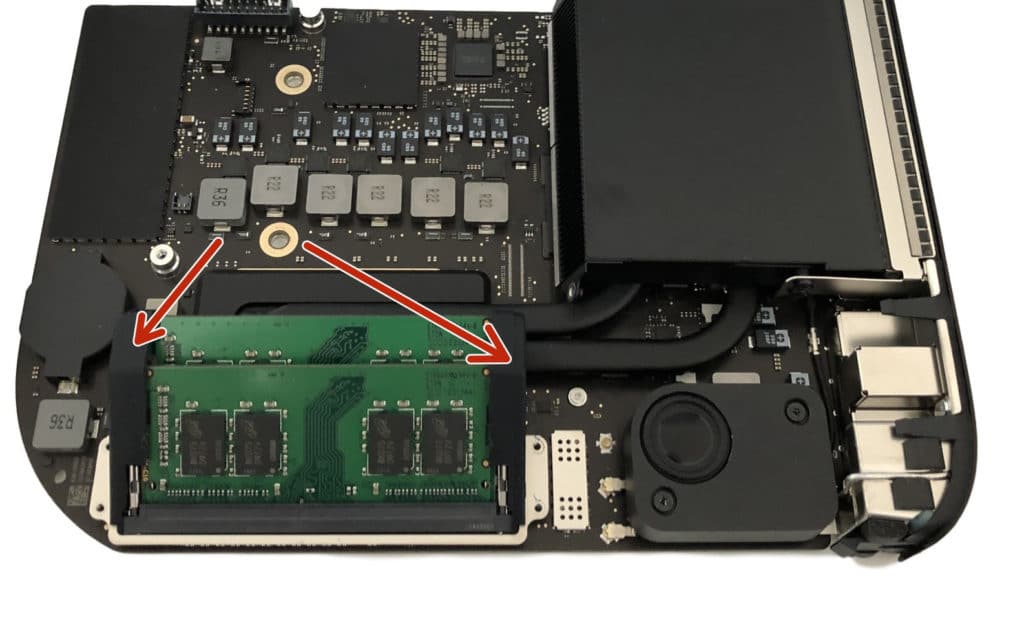
When Apple first unveiled its 2018 refreshed Mac mini lineup last month, it highlighted the fact that it came with SO-DIMM RAM. This meant that the RAM was not soldered on the mainboard and that user replacement/upgrade was possible.
The Mac mini uses DDR4-2666 SO-DIMM which one can easily get from Amazon or any other retailer. Upgrading the RAM manually is going to be a far cheaper route than asking Apple to do the same as the latter will charge users a premium of anywhere between $300 to $500 additional just for upgrading the RAM.
If you plan on buying the 2018 Mac mini and upgrading the RAM yourself, iFixit has now published an 11-step guide which shows how to upgrade the memory on it. The detailed guide should make it easier for anyone looking to upgrade the memory of their Mac mini now or down the line. The process is relatively easy, with iFixit ranking the difficulty as “Easy” and saying the time taken for the whole process will be around 10 minutes.


To upgrade the RAM on your 2018 Mac mini, you will have to slide out the logic board from the housing. This is a delicate process as it requires one to disconnect various antenna cables and connectors on the logic board. You will also have to remove the cooling fan during the process.
If you have ever upgraded the RAM or HDD/SSD of your previous Mac mini, you will find the steps to be remarkably similar. If you are new to the whole process though, follow the iFixit guide closely and make sure to have access to all the tools beforehand. And if you are still not confident enough of doing the job yourself, you can always take your Mac mini to a third-party repair shop who will charge you a small fee for the upgrade.If you lost data after you updated to a new iPhone, you can always use Gihosoft iPhone Data Recovery to get the data back from the old iPhone or backup.
[Via iFixit]
Wednesday, November 7, 2018
How to Set Your iPhone to Erase All Data After 10 Failed Attempts 2019
How to Set Your iPhone to Erase All Data After 10 Failed Attempts
It’s no gainsaying that Apple has done a magnificent job with the security of iPhone. So if you have some files that you want to keep it private and don’t want anyone to see it, you can put a password on the iPhone to make sure no one else can access it without you knowing, and you can even set your phone to erase all data after 10 failed passcode attempts. Though it means you will have to start all over again, it is a sure way to save your files. Question is, how do you set your iPhone erase data after 10 attempts.
How to Set Your iPhone to Erase All Data After 10 Failed Attempts
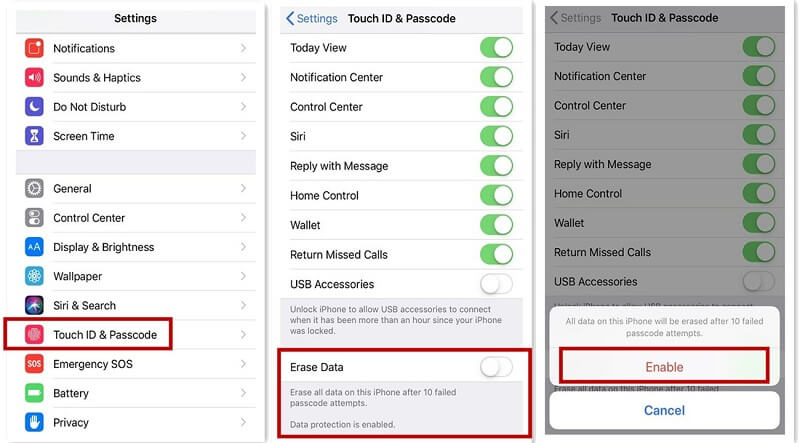
Step 1: Go to the Settings on your iPhone.
Step 2: Scroll down till you see the Touch ID and Passcode option.
Step 3: Click on it and you will see the Erase Data option at the bottom of your iPhone screen, just enable it and it's done.
How to Get Your Data Back after Erasing All Data
Its one thing to be able to set your iPhone erase data after 10 attempts, but the question is, how do you recover your data after it seems to have been deleted? There are basically two ways to recover your data back if you have backups.You may also like:iPhone Backup Extractor - Extract Data from iPhone Backup
1 iCloud
If you have backed up in iCloud, then you can get your data back from iCloud:
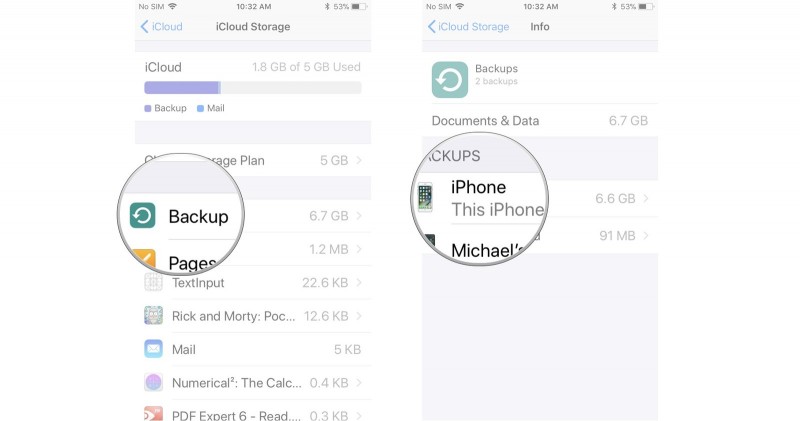
On your iPhone, go to Settings.
Click on “your name” then iCloud followed by clicking on Storage.
Then go to Manage Storage (or Settings) à iCloud, and go to Storage and Manage Storage.
You can then tap a device that’s been listed under Backups to check for the date and size of its latest backup, you just have to make sure you have a file that you’ve backed up recently, if yes you can restore them.
2 iTunes
If you have backed up in iTunes, then you can get your data back from iTunes:
For iTunes users, open the iTunes software on your Mac or PC that you’ve used to back the files up.
Next, connect your iPhone to your computer by using a USB cable. Make sure you trust your device while at that.
You should select your iPhone immediately it appears on iTunes.
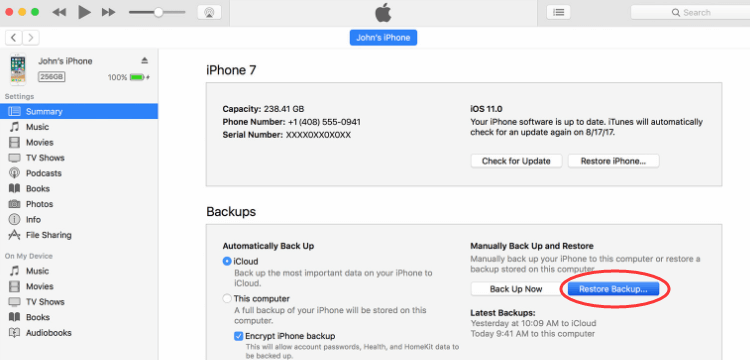
Select the ‘Restore Backup’ in iTunes.
You can then check out the date and size of each of the backup and pick the relevant one amongst all of them.
Finally, click the restore and wait for the restore time to finish.
If you lost data after you updated to a new iPhone, you can always use Gihosoft iPhone Data Recovery to get the data back from the old iPhone or backup.
Subscribe to:
Comments (Atom)
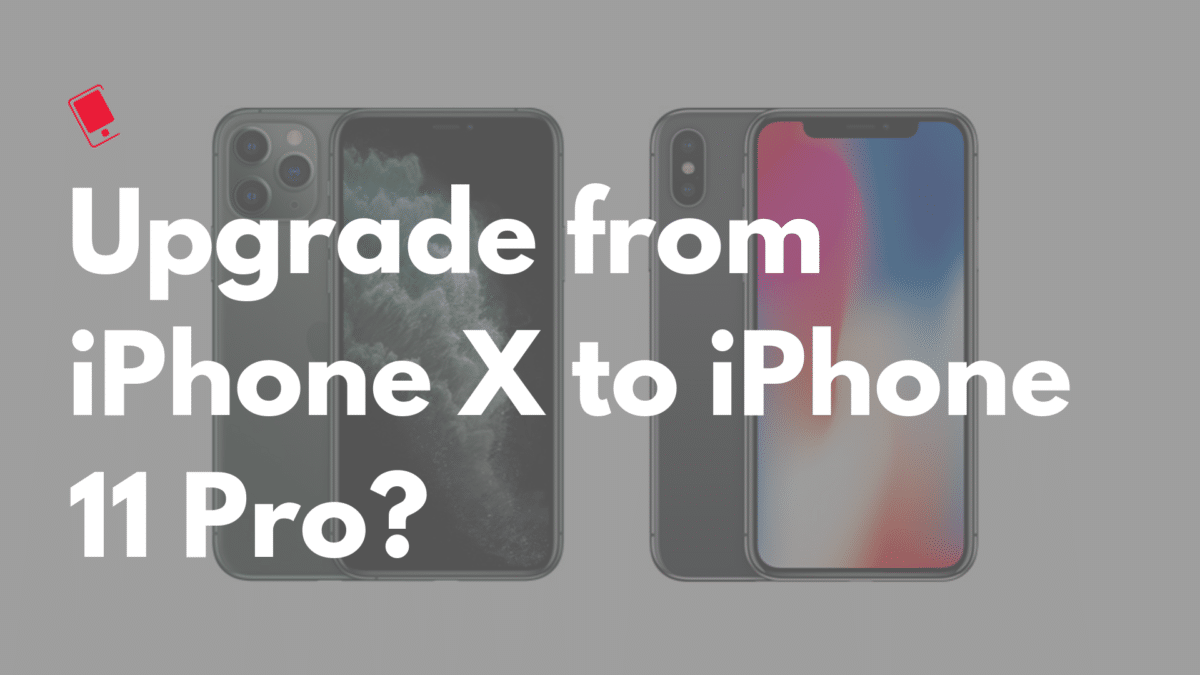
Should You Upgrade from iPhone X to iPhone 11 Pro?
Now that the iPhone 11 Pro is out, many iPhone X owners are wondering if they should upgrade to it or not. If you are in a similar dilemm...
-
The Apple Watch Series 4 was today named one of the Displays of the Year by The Society for Information Display (SID) during the 2019 Displa...
-
Now that the iPhone 11 Pro is out, many iPhone X owners are wondering if they should upgrade to it or not. If you are in a similar dilemm...
-
After a long wait of seven months, Electra Team has finally released SemiRestore (Rollectra) for iOS 11. You can download this unjailbreak...


