Friday, June 8, 2018

4 Solutions to Fix iPhone Frozen on Lock Screen

4 Solutions to Fix iPhone Frozen on Lock Screen

  • Tip 1. Ask Someone to Call You
  • Tip 2. Force Reboot iPhone
  • Tip 3. Fix iPhone Stuck on Lock Screen without Data Loss
  • Tip 4. Restore iPhone with iTunes using Recovery Mode (Data Loss)

1. Ask Someone to Call You

When you find your iPhone frozen on lock screen, the first thing you can try is asking someone to call you. Sometimes with a call the phone screen wakes up and gets unlocked. Ensure that they call you on the same number that is mounted on your frozen iPhone not on an alternate number. This is a basic practice and minor issues related to your iPhone screen should be resolved by this.Sponsor Ads:
Gihosoft iPhone Data Recovery is a professional iPhone Data Recovery software to get back all your lost text message, photo, video, call history, note, contact and more from iPhone/iPad/iPod Touch. It offers a full solution to recover your lost data in different tough situations. Besides recovering data directly from iPhone, iPad and iPod touch, it also allows you to recover data from iCloud and iTunes backup files.

2. Force Reboot iPhone to Unfreeze It

If the above process went futile, you can always try force rebooting your iPhone. Most of the iOS issues including iPhone stuck on lock screen, can get resolved with a force reboot. Here is how to force reboot your iPhone:
  • For iPhone 6/6S and earlier/iPad/iPod Touch
Hold down the 'Home' and 'Sleep/Wake' buttons simultaneously until the Apple logo is visible.
hard reboot iPhone 6
  • For iPhone 7/7 Plus
Push and hold the 'Sleep/Wake' and 'Volume Down' buttons together till the Apple logo appears on your screen.
force restart iPhone 7
  • For iPhone 8/8 Plus/iPhone X
Quickly push and un-hold the 'Volume Up' button and then repeat the same for the 'Volume Down' button. Now, hold down the 'Sleep/Wake' button till the Apple logo is visible.
force restart iPhone X
Let the iPhone restart and you can see that the frozen screen has been unfrozen.

How to Tell if Your iPhone Has a Virus?

How to Tell if Your iPhone Has a Virus?

As mentioned above, making sure that your iPhone is free from viruses is crucial so that you can rest easy knowing that your privacy isn't at risk. The most important step is to find out that your iPhone has a virus. There are a number of symptoms that indicate the presence of the virus in an iPhone. Read below to learn about how to tell if iPhone has virus.
Following are some symptoms of an infected device:

Data Usage

If your data usage is higher than usual and the data is depleting rapidly, then it may be a sign of the virus in your iPhone. Viruses run in the background and also communicate with the internet which ultimately leads to increased data usage. It could cost you a lot of money particularly if you don't have an unlimited data plan. This is because all your data is wasted by the virus and you have to buy extra data in order to continue using the online services.

Crashing Apps

Apps on your iPhone aren't supposed to crash unless there is a problem. If your apps have suddenly started crashing, then it could very well be due to the presence of the virus in your iPhone. This is because most viruses temper with the regular operations of the device and cause the apps to crash without explanation.

Pop-ups

A lot of websites have pop-up ads. However, if your iPhone is infected, then you will start seeing pop-ups all the time, especially for services or products that seem suspicious. If that is the case, then you should check for a virus. It is also recommended that you don't click on the links shown in the pop-up ads. These ads are designed to infect your device and make it even sicker. Sponsor Ads:
Gihosoft iPhone Data Recovery is a professional iPhone Data Recovery software to get back all your lost text message, photo, video, call history, note, contact and more from iPhone/iPad/iPod Touch. It offers a full solution to recover your lost data in different tough situations. Besides recovering data directly from iPhone, iPad and iPod touch, it also allows you to recover data from iCloud and iTunes backup files.

Unexplained Charges

Crashing apps and ads are annoying but unexplained charges and mysterious billing are worse. If your iPhone is infected by virus, you will start to find unusual charges particularly in the 'SMS' category. This is because most malware and viruses send messages to premium-rate numbers.

Battery Drain

Since the virus runs in the background all the time, it consumes a lot of resources. This leads to increased battery drain because your iPhone is using more data and CPU. Like actual viruses, malware is also heavy on the device's resources and can leave your iPhone's body completely exhausted. It is recommended that you check battery usage of your iPhone and find out which apps are using the most power. If you see an unfamiliar app using the battery, uninstall it immediately.

How to Remove Virus from iPhone?

How to Remove Virus from iPhone?

Factory Reset

The easiest way to get rid of the virus is to factory reset your iPhone. Factory resetting will remove all your data, including the virus from your device. Although it is an effective way to get rid of the virus, it should be done as a last resort because your data is wiped in this method and without a backup, you won't be able to restore it. Follow these instructions to reset your iPhone:Sponsor Ads:


Gihosoft iPhone Data Recovery is a professional iPhone Data Recovery software to get back all your lost text message, photo, video, call history, note, contact and more from iPhone/iPad/iPod Touch. It offers a full solution to recover your lost data in different tough situations. Besides recovering data directly from iPhone, iPad and iPod touch, it also allows you to recover data from iCloud and iTunes backup files.


Open Settings app.
Navigate to Settings > General > Reset.
Select Erase All Contents and Settings and then input your passcode to start the reset process.


Clear History and Website Data


Increased pop-up ads is a symptom of virus in your iPhone. If you are being redirected to other pages and seeing a lot of pop-ups lately on your Safari browser, then it may be due to the presence of the virus or malware. In this case, it is recommended that you clear history and website data from the browser to remove virus from iPhone. Follow these instructions to clear history and website data:
Open Settings app.
Navigate to Safari > Clear History and Website Data.
Then select Clear History and Data to confirm your action.


Power Off and Restart


Sometimes restarting the device is enough to clear the RAM of your device and stop the unwanted background processes, including the virus. Follow these instructions to restart your iPhone:
Press the power button of your iPhone until the screen changes. You will see a slider on the screen prompting ‘slide to power off'.
Now use the slider to power the iPhone down.
Once it is completely switched off. Use the power button to boot the device.


Delete App Suspected of Containing the Malware


Most viruses spread through third-party apps in your iPhone. If you suspect an app misbehaving lately e.g. it is taking a lot more resources than usual, increasing your data usage drastically, or causing battery drain, etc., then it might be because the app is infected with malware. In this case, it is recommended that you delete/uninstall that app from your iPhone.
Restore Your iPhone from a Recent Backup


If you back up your iPhone regularly, then it will be quite easy for you to get rid of the virus on iPhone. You simply need to restore your iPhone to the most recent backup that doesn't contain the virus. If restoring the backup does not remove the virus, then it means your iPhone was infected at the time of creating that backup. In that case, you will need to restore from the second most recent backup. You will need to use iTunes for this purpose.


Step 1. Connect your iPhone to computer and launch iTunes.
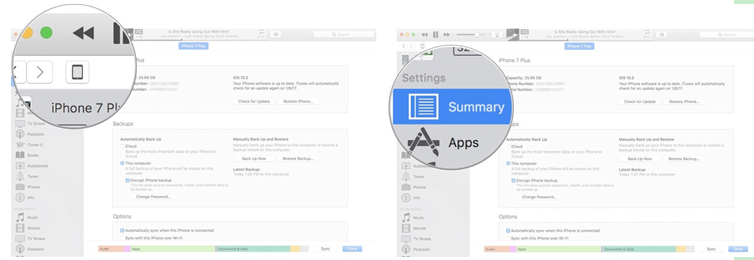


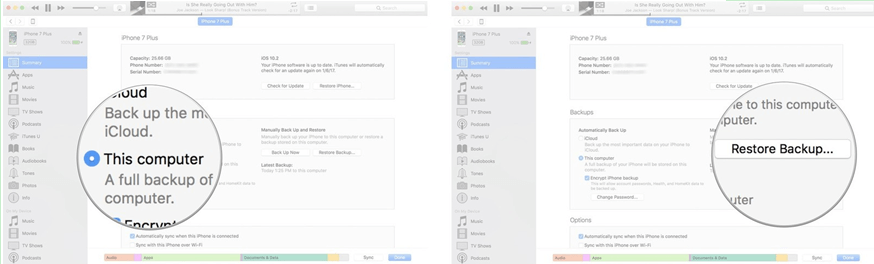
Step 2. Select This computer and click on Restore Backup.


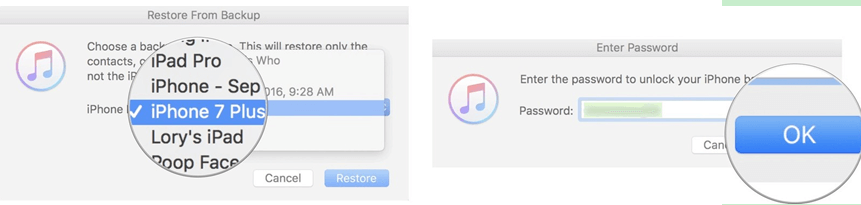
Step 3. Then choose a backup and click on Restore.


Upgrade iOS


Firmware updates bring security patches that protect the device from virus or malware attacks. If you haven't upgraded your iPhone's firmware in a while, then your device may be vulnerable to malware attacks. Upgrading your iPhone will help you remove the virus from your iPhone and also protect your device from future malware attacks.
Open Settings app on your iPhone.
Click on General > Software Update > Install Now.


Un-jailbreak an iPhone


Jailbroken iPhone can be installed with apps from various dubious sources. This makes the jailbroken iPhone more vulnerable to viruses or malware. If your iPhone is jailbroken, then it is recommended that you un-jailbreak it to protect it from viruses.

Gihosoft Free Android Data Recovery can help you easily recover lost data such as photos, videos, contacts, text messages, WhatsApp & Viber chats from Google Pixel/XL or other Android phones effortlessly.

If you lost videos from iOS Camerall Roll which are nowhere to download again, you can use Gihosoft iPhone Data Recovery to get back deleted videos from iOS device including iPhone, iPad and iPod Touch.

How to Delete Apps without Deleting Doc and Data

How to Delete Apps without Deleting Doc and Data

You can also erase apps without deleting their data and documents. This is especially useful if you want to remove the apps but feel you would need them later so you don’t want to lose your data and completed levels etc.
The easy way to do this is to use the “Offload App” feature from your iPhone settings. This feature is only available on iOS 11 device.
Step 1: Go to “Settings” on your iPhone.
Step 2: Tap on “General”.
Step 3: Tap on “iPhone Storage”. This will bring out a list of the apps on your device.
Offload App
Step 4: Tap on an app and you will see the space occupied by the app and its data. You will also see two option: Delete App and Offload App.
Step 5: Select Offload App. This removes the app and leaves the documents and data associated with the app for when you need them again.Sponsor Ads:
Gihosoft iPhone Data Recovery is a professional iPhone Data Recovery software to get back all your lost text message, photo, video, call history, note, contact and more from iPhone/iPad/iPod Touch. It offers a full solution to recover your lost data in different tough situations. Besides recovering data directly from iPhone, iPad and iPod touch, it also allows you to recover data from iCloud and iTunes backup files.

Should You Upgrade from iPhone X to iPhone 11 Pro?

Now that the iPhone 11 Pro is out, many iPhone X owners are wondering if they should upgrade to it or not. If you are in a similar dilemm...