Friday, October 26, 2018

Top 7 Android Font Apps for Instagram Stories and Posts 2019


Let's face it, the built-in fonts in Instagram barely cut it. There are just five options, and if you post half a dozen stories a day like me, you must be bored of them already. The good news is that it's quite easy to add a bit of flavor to your Instagram posts and enhance your stories with unique stylized fonts. Throw a cool GIF into the mix, and you'd have a fresh story in a matter of minutes.Also read:mp3 torrent

Read more:instagram for pc


Also Read:


5 Best No Crop Apps for WhatsApp & Instagram to Post Full Size Pics

How to Save Instagram Photos and Videos on Android Phones


In this post today, we will look into useful font apps for Android that will let you experiment with different styles.

This article bifurcates into two sections. The first section delves into graphic design apps and the second section concentrates on dedicated font generators — they let you copy the stylized text and paste on Instagram.

Let's get started!
1. ADOBE SPARK POST

When it comes to enhancing social media images, Adobe Spark Post is one of my favorite apps. It comes loaded with a variety of features which can make an image go from good to fab with a few taps. And needless to say, it bundles plenty of typefaces and styles.

So all you need to do is open a post or choose one from the hundreds of free stock photos. Once done, tap on Font and the wonderful world of font types and styles will open up for you.

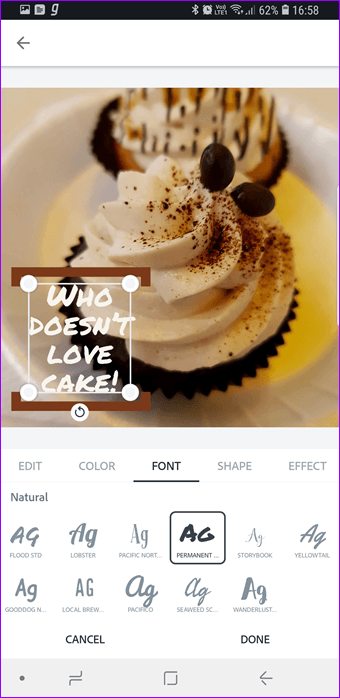

Naturally, you can test some funky fonts like Mountain and Storybook. You can further tweak them by shape and size.
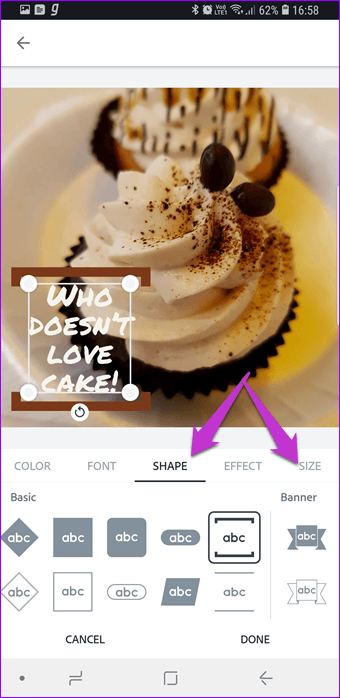


Once you have crafted your template, all you need to do is save, and add the resulting image to your Instagram story or post.

Download Adobe Spark Post
2. CANVA

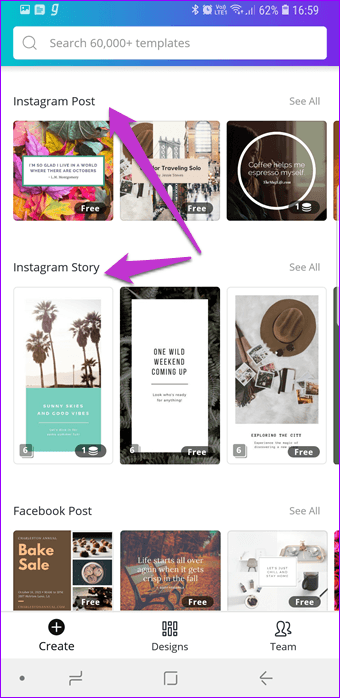
Another cool app is Canva which is available for both iOS and Android. The sheer number of font styles can be a bit overwhelming initially. Ok, I went a bit overboard, but you get the idea. The best thing about it is that you can choose the type of template (Instagram story or post) beforehand.


Also Read: Top 5 Best Cameras Apps for Android to Take the Perfect Selfie


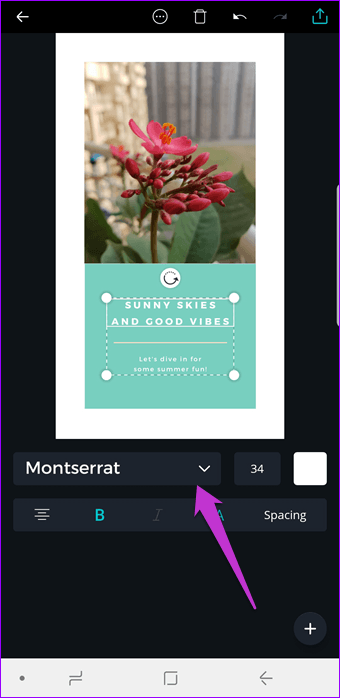
Once you select a proper background picture, all you need to do is pick the font. You can either search for your favorite font directly or choose one from the drop-down menu.
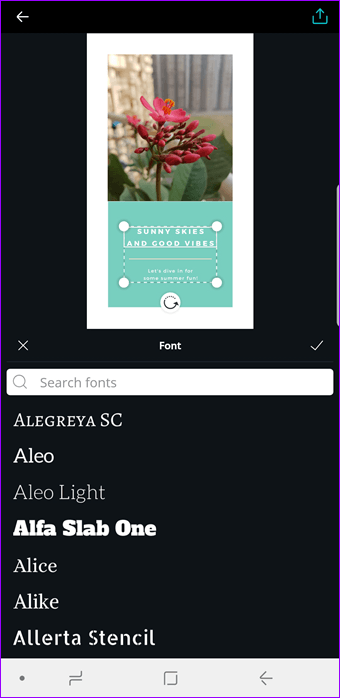
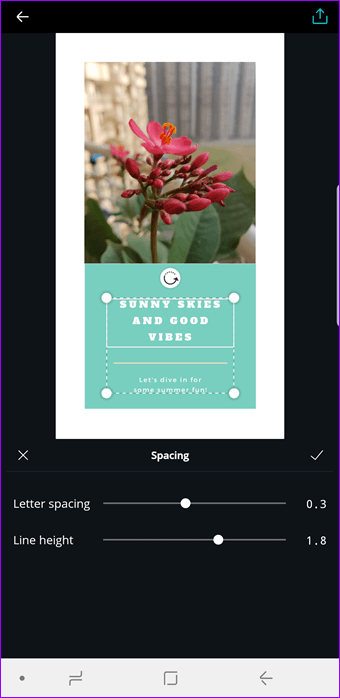

Canva offers more solutions than Spark Post in the sense that you can tweak the line height and size as per your liking. Once you make the necessary selections and changes, save the image, and share the same over Instagram. Yeah, you can thank me later.

Download Canva
3. TYPOGRAPHY MASTER

Launched in July 2018, Typography Master is one of the newest kids on the block when it comes to fonts and typefaces. And it's remarkable how many styles it accommodates under its roof. From cool vector graphics to background shapes — it lets you test with an array of styles.


The good thing about this app is that you can fit the image according to the aspect ratio of the posts - 3:4 or 4:3. Once you select the aspect ratio, tap on the Text icon to start.

Sponsored Ads: No time to cry over spilled milk, now you can recover deleted data from Android easily and for free with Gihosoft Free Android Data Recovery software


My only complaint is that the app shows full-screen ads and that can get in your way at times.

Also Read: How to Hide Private Pictures on Any Android Phone

Download Typography Master
4. PIXLR

Though Pixlr is more of a photo editor, it has a cool side to it. It houses a variety of fonts in different styles and effects. You can choose from retro designs to new age funky ones. You can also adjust the opacity of the text as well as the color.
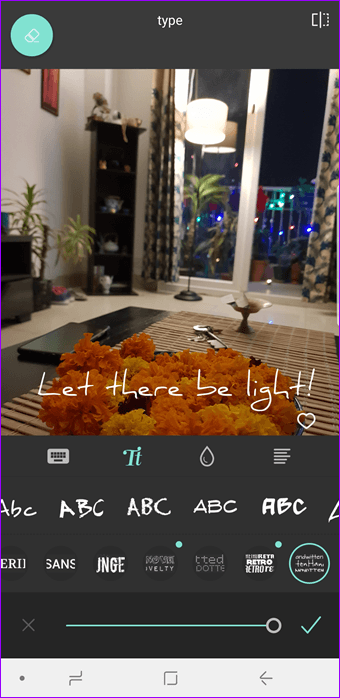


My only gripe is that there's no option to choose the background text shape. Make sure you download all the styles in advance to explore a variety of options.

Download Pixlr
5. COOL FONTS FOR INSTAGRAM BIO

It's time to look at the dedicated font generators. The first one on our list is Cool Fonts. It has free as well as paid designs, using which you can customize your Instagram stories and posts.
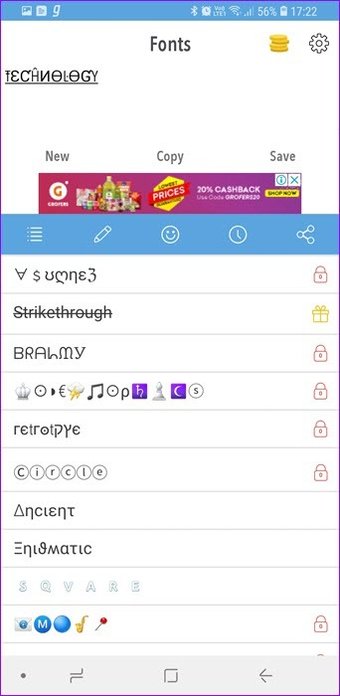


Cool Fonts' styles are based on Unicode

As we mentioned previously, you have to write the text, change the font and then copy the text to Instagram. Cool Fonts' styles are based on Unicode which means that your followers will be able to see the text irrespective of the platform. As the name suggests, you can also elevate your Instagram bio with these cool fonts. Being a free app, you'll see ads from time to time.

Download Cool Fonts for Instagram Bio
Also Read: Top 10 Best Screen Recording Apps for Android Not to be Missed
6. TEXT FONT GENERATOR


Well, the name pretty much gives away the app. Text Font Generator is similar to the above apps and lets you experiment with quite a few different designs and formats. All you need to do is enter some words, and the app will generate a variety of stylized text for you.
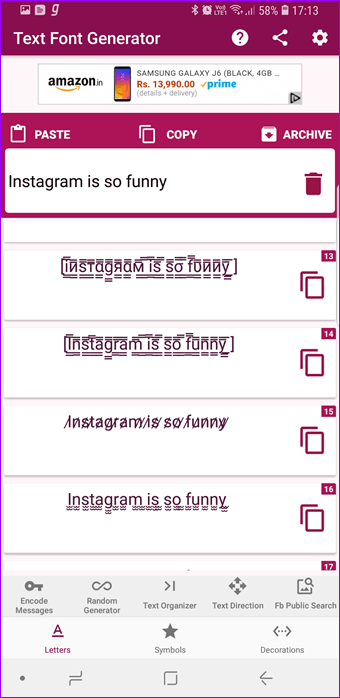
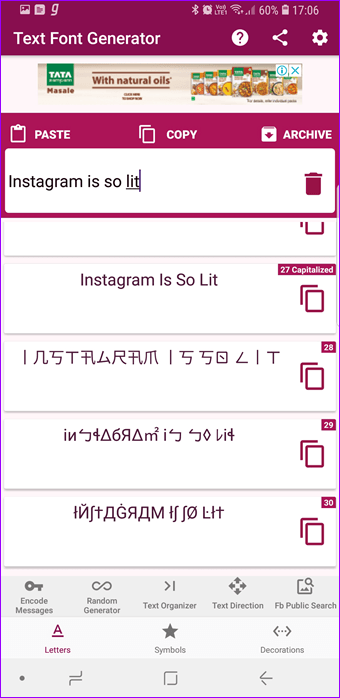

Its advantage is that you can see all the variations in a list. That's much better than selecting a particular font and then checking the result. Also, the number of fonts is limited to 30.


If you are in a mood for some fun, you can try out the Random Generator tab. It places a few funny characters before and after the text. It took me on a nostalgia trip to my Orkut days (remember those crazy testimonials?).

Download Text Font Generator
7. STYLISH TEXT

Stylish Text takes the same road as the above two apps and is a yet another font generator. Its advantage is that you can also use the fonts on WhatsApp directly. And, if your phone runs Android Oreo, you get to unlock a couple of more options.
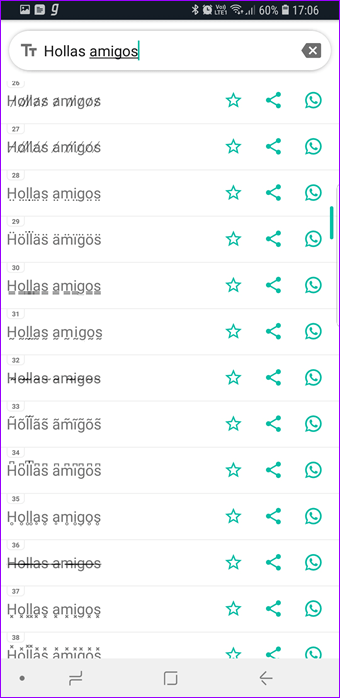
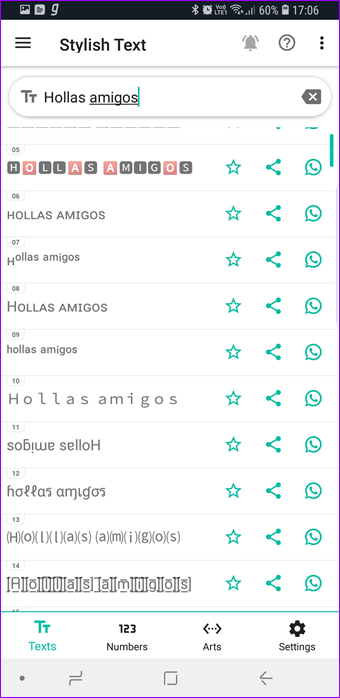

Using this app is straightforward. Type a message, and the stylized text will be available instantly. If you like a particular stylized text, tap on it and then press the Copy icon.
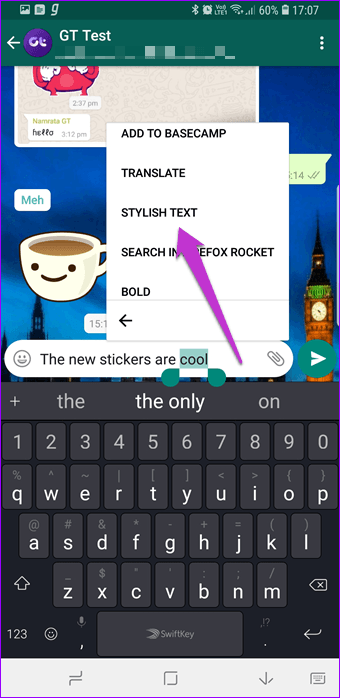


PRO TIP: On WhatsApp, you must first select your text, tap on the three-dot menu and then pick Stylish Text. Choose an option, and you'll be good to go!

Download Stylish Text
STYLIZE YOUR STORIES!

Agreed that Instagram has added a bunch of new features over the past year, but they are not enough. If you have a business page or a public account, it's advisable to have a dozen companion apps to produce incredible social media images. And while you are at it, don't forget to check out a couple of awesome quote making apps.

Coming back to the topic, what do you prefer? Dedicated font generators or graphic design apps?

Monday, October 22, 2018

Unlock the Screen on an iPad? Step by Step Guide 2019


Unlock with iCloud

iTunes isn’t the only method for restoring your iPad. You can also use iCloud to unlock your device. This feature is normally used for stolen devices, but it works great for personal users too. In order to do this, you must have enabled the “Find my iPad” feature on your tablet before you locked it. If you have a backup of your device on iCloud, you can use that to restore your iPad without losing your data.


Open the Find my Page section of the Apple website. Or download and launch the Find my iPad app on to another Apple device.


Sign into the service using your Apple ID.


Choose the iPad from the list of devices .


Click on the “Erase iPad” option and re-enter your Apple ID information. Enter your phone number and the message you receive. This information will appear on the iPad screen and is used to recover a lost iPod.


Turn the iPad on and wait for it to be erased. Make sure that your iPad is in range of your Wi-Fi network.


Restart your iPad if necessary and reactivate it using your Apple ID.


Set up your device and click on “Restore from iCloud Backup” to restore the backup on your iCloud account if applicable. If not, set up the iPad as normal.


If you lost data after you updated to a new iPhone, you can always use Gihosoft iPhone Data Recovery to get the data back from the old iPhone or backup.

Must Read:Jihosoft iTunes Backup Unlocker

Jihosoft Photo Eraser

Free iTunes/iPhone Backup Extractor for iPhone, iPad

iPhone Backup Extractor - Extract Data from iPhone Backup

You may also like:online youtube downloader

Sunday, October 7, 2018

How Much to Unlock iPhone 6 with IMEI?


How Much to Unlock iPhone 6 with IMEI?
1 iPhoneimei.net

Unlocking your iPhone 6 with the iPhone IMEI platform is very straightforward, as all you have to do to get started is visit their site at www.iphoneimei.net and input your IMEI number and let them handle the rest. They are one of the best merchants to use, the estimated waiting period depending on the network carrier on the phone and the location you are unlocking from. They cover most networks in the US, UK , Canada and any other countries.


Price

Their prices start at $28.00. And will need 1-5 days to unlock your iPhone 6. To find the details on how much to unlock iPhone 6 at here: https://iphoneimei.net/official-iphone-unlock .
2 Officialiphoneunlock.co.uk

This platform is similar to the iPhone IMEI with quick delivery times. It however, has the largest range of the platforms covering most of Europe and Asia. This platform can be assessed through their website at www.officialiphoneunlock.co.uk and in spite of their very wide range of coverage, they do have higher pricing and more importantly, they charges are in pounds which may affect your final price during payment from another currency due to exchange rates.


Price

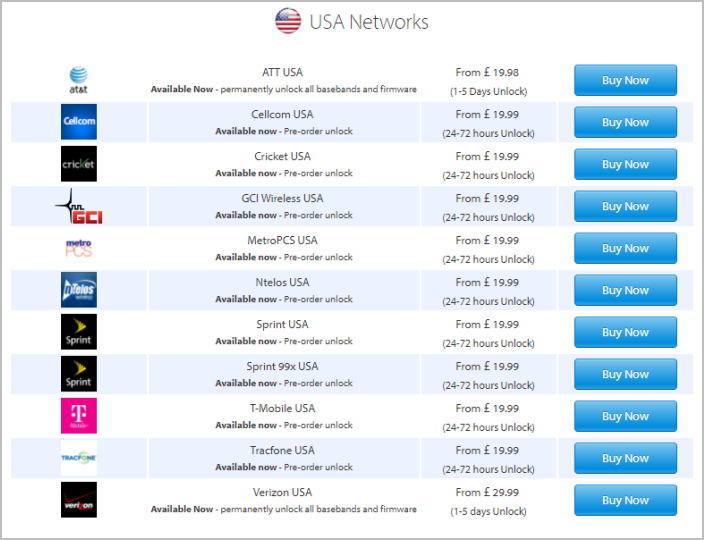
Their prices start at £19.99. And will need 24 ~ 48 hours to unlock your iPhone 6. Here is the details on how much it cost to unlock iPhone 6: https://www.officialiphoneunlock.co.uk/pricing-table.php.
3 Iphoneunlock.zone


This site is very effective when it comes to helping you unlock your iPhone 6. You can always reach them at www.iphoneunlock.zone. They have great customer support, payment can be made through PayPal, they provide free consultation and offer refunds in the event that they failed to unlock your phone. Just pick up your iPhone model(iPhone 6), and confirm the following questions:


Is it Network/SIM Locked?


Does it have other issues?


What is the iCloud Status of your iPhone?

Then you need input your email, they will send you an order which contains how much to unlock iPhone 6 and how long it will take.

Price

Get their pricex via an email after you answer the above question.
4 Doctorsim.com

Similar to other sites listed above, all you have to do is input your IMEI number, device model and location, and the price for unlocking your phone and its estimated will be shown.


You then pick a payment method.

Price

For Standard ATT Service, it will cost $14.95 to unlock your iPhone 6 with an average delivery time of 14 hours, 41 minutes.
5 Imeicodes.co.uk


This site has been included in this list because it has a last resort option when you need to unlock your iPhone 6. When they do cover as much ground as the other on the list, they offer a moderate price for the services they offer. You can reach it on www.imeicodes.co.uk. While they do have an email support centre they do delay in response to your queries.

Price

For Apple replacement unlock by IMEI, it will cost £30 to unlock your iPhone 6 with a delivery time of 1 - 3 Working Days. For the details on how much to unlock iPhone 6 and the delivery time, just go to: http://www.imeicodes.co.uk/prices.php .

Gihosoft Photo Eraser Erase unwanted objects and perfect your amazing photos!

If you lost data after you updated to a new iPhone, you can always use Gihosoft iPhone Data Recovery to get the data back from the old iPhone or backup.

Jihosoft Photo Eraser

Free iTunes/iPhone Backup Extractor for iPhone, iPad

iPhone Backup Extractor - Extract Data from iPhone Backup


Friday, September 28, 2018

Fix Software Update Is Required to Connect to iPhone Error


The Update Can’t Be Installed? What To Do Now?

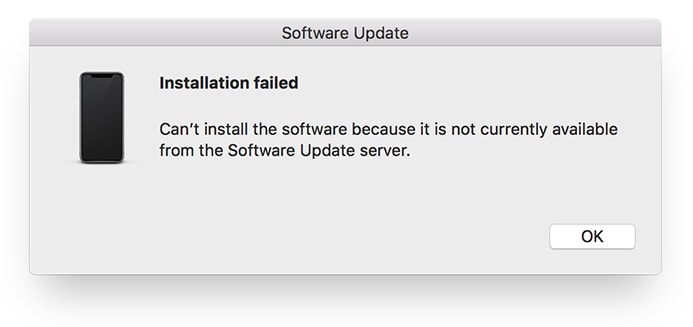
Sometimes you won’t be able to install the updates due to preselected options related to software update options. You can see the message “installation failed – Can’t install the software because it is not currently available from the software update server” and it can be difficult to update your OS version. So, in this condition don’t panic and concentrate on some useful solutions. Maybe your iPhone is in developer beta or public beta software state which require you to make your iPhone officially supported for new updates. When you are using beta software on your iPhone, you can’t merely update your Operating system version.


You need to install iOS beta, and therefore you have to install Xcode beta on your Mac. After this, there may need to sync your iPhone with iTunes again. In below, you can read the complete process of installing the Xcode Beta on your Mac. Although these steps will take considerable time, but you can complete the process efficiently. You don’t need to be a programmer to understand and follow the following steps.
How to Install the Xcode Beta on Your Mac

You can download Xcode from App Store free of cost. It is an integrated development environment for developers of iOS and Mac apps.


You need to get the beta version of Xcode by visiting the link, developer.apple.com/download. You need to provide your Apple ID.


After the above step, you will see a list. You need to choose the latest Xcode beta, and click on “Download” button. The downloading will start in a few seconds.


After completion of the download, you will notice an XIP compressed file which will be of large size. You must uncompress it.


After extracting the zip file, you will get application file which will be twice the size of compress file. You will get the “Xcode-beta” app after completion of the extraction process.


Now double click on “Xcode-beta” app, you will see “install additional required components.” You have to Click on “Install” begin the installation process.


Here one important thing to note that you have to close iTunes before continuing to further processes.


You have to write your password in the required field and submit. This step will also take some time.


Now you will see “Welcome to Xcode” window on your Mac. This indicates that you have done all of the work required.


Now you have to quit Xcode and go to open the iTunes. Now you can experience that your iPhone is able to sync and play music and do other tasks.


Fix Software Update Is Required to Connect to iPhone Error
Above are all the steps which you can follow to remove the ‘Software Update Is Required to Connect to Your iPhone.’ Notification. We will advise you to keep installed Xcode on your Mac as you can need it anytime. Once you get the stable release of your installed beta version, you can go to that and can uninstall Xcode from your Mac.Gihosoft Photo Eraser Erase unwanted objects and perfect your amazing photos!


If you lost data after you updated to a new iPhone, you can always use Gihosoft iPhone Data Recovery to get the data back from the old iPhone or backup.


Jihosoft Photo Eraser


Free iTunes/iPhone Backup Extractor for iPhone, iPad


iPhone Backup Extractor - Extract Data from iPhone Backup


Jihosoft Android Data Recovery: the best Android Data Recovery software for Windows and Mac to recover deleted contacts, messages, photos, videos, WhatsApp and etc from Android devices.


Gihosoft Android data recovery Free is a super awesome software specialized in Android file recovery. With this program, you are able to recover deleted photos, music, videos, messages, contacts, call logs, WhatsApp messages, Viber chat history and more from Samsung, Huawei, LG, HTC, Motorola, Google, Oneplus, Sony, Lenovo, ZTE and other Android devices directly.


You may also like:online youtube downloader


Tuesday, September 18, 2018

How to Identify Apps Draining iPhone Battery


Step-by-Step Guide to Identify Apps Draining iPhone Battery

Now that you have access to data from last hour to 10 days, browse around in the section until you find the apps that are draining a lot of your battery. Use both the percentage metric and the background activity stats to figure out which app has been consistently draining your battery.

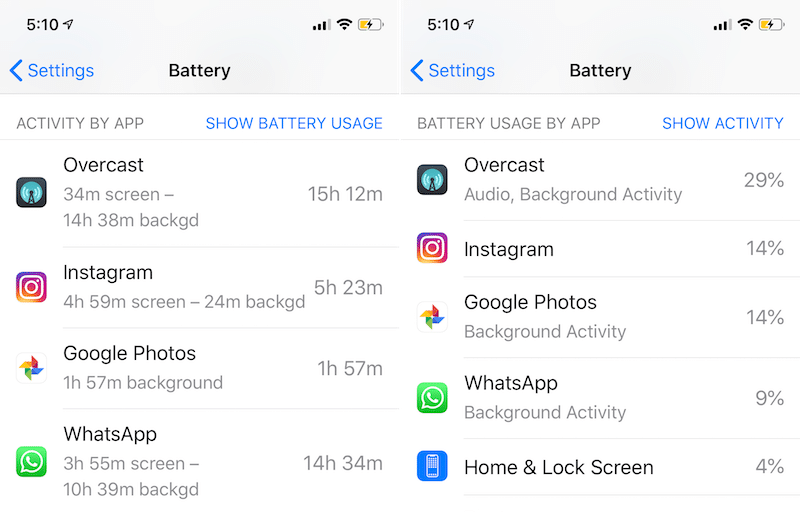
Step 1: Go to the Last 10 Days section and tap on the Show Battery Usage feature. The app on top here has been draining the most battery over the last 10 days.


Step 2: Switch to the Show Activity option and now you can see which apps have been active the most time. If an app has been using a lot of energy in the background, you’ll find the background time stats to be in hours instead of minutes.


Step 3: To view apps using the most battery life in the last day, switch to the Last 24 hours tab. Again, the app on the top of the list will be the app which drained the most battery life.

In the screenshot below, notice the Google Photos option. It’s has used as much battery life by operating two hours in the background, as Instagram has used by active on screen for 5 hours. Clearly, Google Photos is draining my battery unnecessarily in the background.

Clearly, I’ll have to do something about the background syncing process on Google Photos. If you’re in the similar boat and you can’t just delete the app outright, try disabling Background App Refresh for the given app.


Find Apps That Went Rogue For a While

It happens sometimes. Your iPhone battery will drop by 40% in an hour and you have no idea why. Well, thanks to iOS 12’s new battery charts, you drill down the particular hour where the battery drain happened.

Go to the 24 Hours section and from the Activity graph, pick a bar that corresponds the hour where the battery drain happened. The culprit should be listed at the top.Gihosoft Photo Eraser Erase unwanted objects and perfect your amazing photos!

If you lost data after you updated to a new iPhone, you can always use Gihosoft iPhone Data Recovery to get the data back from the old iPhone or backup.

Jihosoft Photo Eraser

Free iTunes/iPhone Backup Extractor for iPhone, iPad

iPhone Backup Extractor - Extract Data from iPhone Backup

Jihosoft Android Data Recovery: the best Android Data Recovery software for Windows and Mac to recover deleted contacts, messages, photos, videos, WhatsApp and etc from Android devices.
How is Your iPhone Battery Life in iOS 12?

Has the battery life on your iPhone or iPad improved after upgrading to iOS 12? What about the performance? Share with us in the comments below.


Thursday, August 30, 2018

How to Enable, One Handed Keyboard on iPhone Missing or Not Working: iOS 12


Enable, One Handed Keyboard on iPhone Missing or Not Working: iOS 12

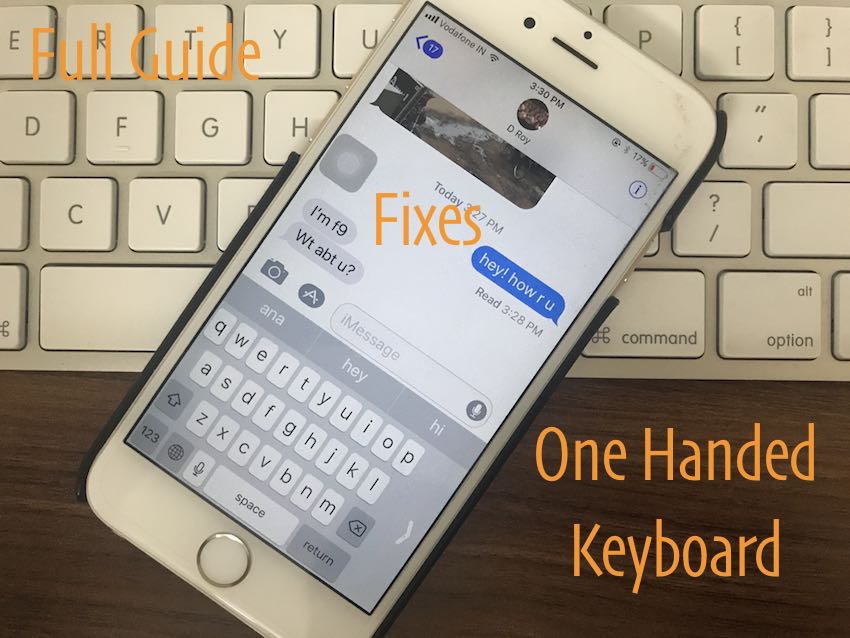
Make typing easy and Quick using One-Handed Keyboard mode on iPhone. Users also reported One-handed keyboard make iPhone screen freeze and unresponsive. Otherwise, it’s convenient virtual keyboard that set on screen depend on user’s wish. Also get quicker Fix on After enable Left/ Right handed keyboard is not working/ Missing or cannot use on compatible iPhone models.

The One-Handed mode in iOS 11 is an effortless way to start type text in Messages, Mail, Chat, Notes and more. Here are the troubleshooting steps for One-Handed Keyboard can’t Working on iOS 12.

Right now there are too many third-party one-handed keyboards on the app store but not facilitate like a suitable option given by Apple in iOS 11. Also useful settings for preventing or use the one-handed keyboard on iPhone, iPad using tiny fingers and hand.

A fantastic option for default keyboard quickly enables and convert layout on appropriate design. Let’s see how to use?


Steps for Enable/Turn on One Handed Keyboard on iPhone, iPad: iOS 12/iOS 11

Apple has added a one-handed keyboard option to the iPhone. There are two ways to activate it:

#1: By default this option always available on your keyboard.

#2: See, Long-press on the globe icon or Emoji icon on the keyboard, near to microphone icon. Next, you will see Keyboard position icon (Left, Right keyboard)


How to Permanently Delete History on iPhone or iPad 2018

At last, you will see Keyboard settings in a popup. Tap on it. And jump into Keyboard settings. See screen below,


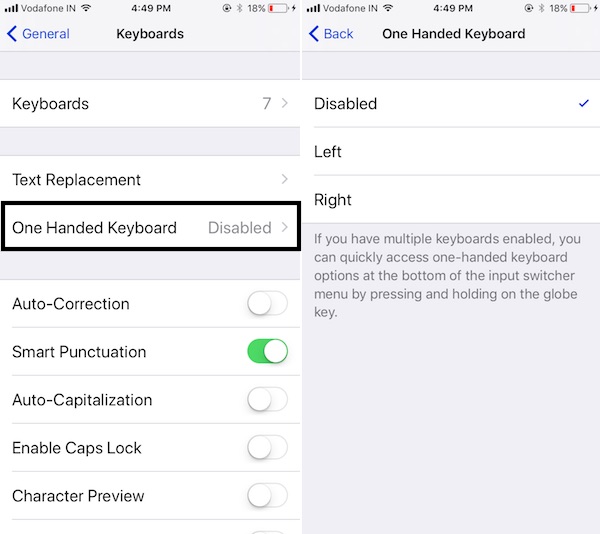
See One Handed Keyboard > Tap on it and Change Keyboard Layout (Disabled for Turn off, Left and Right).

Disable/ Turn off one-handed keyboard pic center layout in keyboard settings pop-up.

Until you change this setting, it always sees in this handed mode. See Keyboard in full keyboard pane, Tap on Arrow icon, by repeat the same steps.
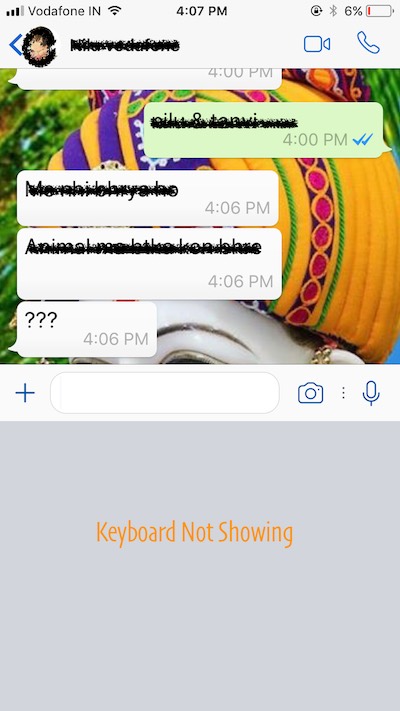
2nd Method: iPhone One-handed Keyboard not Showing or Disappeared

Important Solution!!!

One Handed Keyboard mode required Display Zoom Off and Set Standard Display mode from the Settings app.

Go to the Settings app on iPhone

Display & Brightness > Scroll Down and Tap on View.


Select, Standard and Save. Changes may affect sleep your iPhone screen.

This happens because of large keyboard layout hide one-handed keyboard view, and the result is unable to activate (Left Handed or Right handed Mode, Two-Handed mode) or disappeared.
3rd Method: Using Settings App, Should not Disabled

Disable One-handed mode from Settings app.

Go to the Settings > General > Keyboard > One Handed Keyboard.

Sometimes, One-Handed keyboard not Showing under Text Replacement. So Follow the 2nd method. And check it again on below screen,


Select Disable.
Fixed: One Handed Keyboard not Activating, Freeze/Closing

#1: Restart or Reboot iPhone

Understandable suggestion some time helpful. By restart or Force Restart you make refresh your iDevice from a root and clear all problems related to memory, Interrupted process and more in a technical manner.

Restart: Press and Hold Sleep/ Wake button until you see the apple logo on the screen.You may also like:Gihosoft Mobile Transfer: 1 Click Data Transfer from Phone to Phone

Force Restart,

For iPhone X, iPhone 8 Plus, and iPhone 8 users:

1: Press and Quickly Release Volume Up button,

2: Press and Quickly Release Volume Down Button,

3: Press and Hold Side Button until you see the Apple logo on Screen.

To Start iPhone, Again press Side button until the startup Apple logo on the screen.

iPhone 7 or later users: Press Sleep Wake + Volume down button, until you see the apple logo on the screen.

iPhone 6S and Earlier users: Press Sleep Wake + Home button.

Also read: How to Unlock a Disabled iPhone Without iTunes.
#2: Check for Update iOS

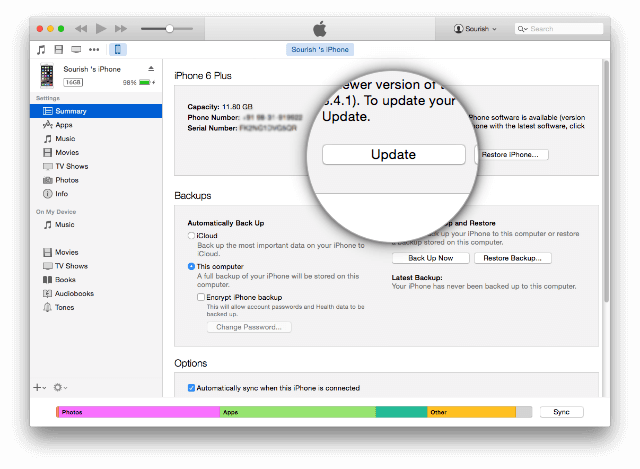
Fix out general fixes with new updates in iOS 12 from Apple. Check it from Settings > General > Software Update.

Hope you are using the one-handed keyboard without any trouble, Because it’s new and beneficial on big screen iPhone 6, 6 Plus, iPhone 7, 7 Plus and New iPhone 8/ iPhone 8 Plus/ iPhone X.

Free iTunes/iPhone Backup Extractor for iPhone, iPad

Jihosoft iTunes Backup Extractor is a powerful tool to recover and extract important data from iPhone, iPad & iPod touch backup on Windows or Mac.

How to Fix iTunes Error 51


Other Solutions to Fix iTunes Error 51


Some other troubleshooting solutions to this error include:

a.Updating iTunes


If you’re still running an outdated iTunes, then that may be the source of the problem. Why don’t you update it to see if iTunes update or restore error 51 will stop? Updating iTunes on your Mac or PC should be your first troubleshooting technique.


Step 1. Launch iTunes on your Mac or PC.


Step 2. Go to Help, and select “Check for Updates”.


Step 3. If there is an update for your iTunes, download and install it, then try restoring or updating your iPhone again.

b.Check for a Faulty Hardware and Replace It


If you’re using a USB cord to connect to iTunes, check to know if any part of the cord is broken or cut. Also, try the same thing on your USB extension if you’re using one, but if you’re directly using the USB port on your Mac or PC, then try and change to another port to see if iTunes will work.


If any of these connectors are defective, try to change them or switch to another as the case may be.

c.Delete the .ipsw File


The .ipsw file is useful for installing the iOS firmware. Therefore, whenever this file get corrupted by any malware or virus, you’ll start experiencing iTunes error 51. Therefore, delete this file and iTunes will automatically reinstall a clean version of it.


On Mac: Run the following commands “Finder > Go > Go to Folder > type ~/Library and press Go > open iTunes folder > iPhone Software Update and delete the .ipsw files.”


On Windows: Run the following commands “C:\Users\your account\AppData\Roaming\iTunes\iPhone Software Update and delete all .ipsw file. Delete all file if there are more than one .ipsw files.”

Jihosoft Android Data Recovery: the best Android Data Recovery software for Windows and Mac to recover deleted contacts, messages, photos, videos, WhatsApp and etc from Android devices.

Gihosoft Android data recovery Free is a super awesome software specialized in Android file recovery. With this program, you are able to recover deleted photos, music, videos, messages, contacts, call logs, WhatsApp messages, Viber chat history and more from Samsung, Huawei, LG, HTC, Motorola, Google, Oneplus, Sony, Lenovo, ZTE and other Android devices directly. Meanwhile, this Android data recovery software is available for both Windows and Mac platforms.For now, check:Free iTunes/iPhone Backup Extractor for iPhone, iPad

Jihosoft iTunes Backup Extractor free is a powerful tool to recover and extract important data from iPhone, iPad & iPod touch backup on Windows or Mac.

You may also like:Gihosoft Mobile Transfer: 1 Click Data Transfer from Phone to Phone

If you can’t sync with iTunes and want to rescue data from a disable iPhone, you could try Gihosoft iPhone Data Recovery. Also feel free to ask questions on the iDevice is disabled error in the comments section below.

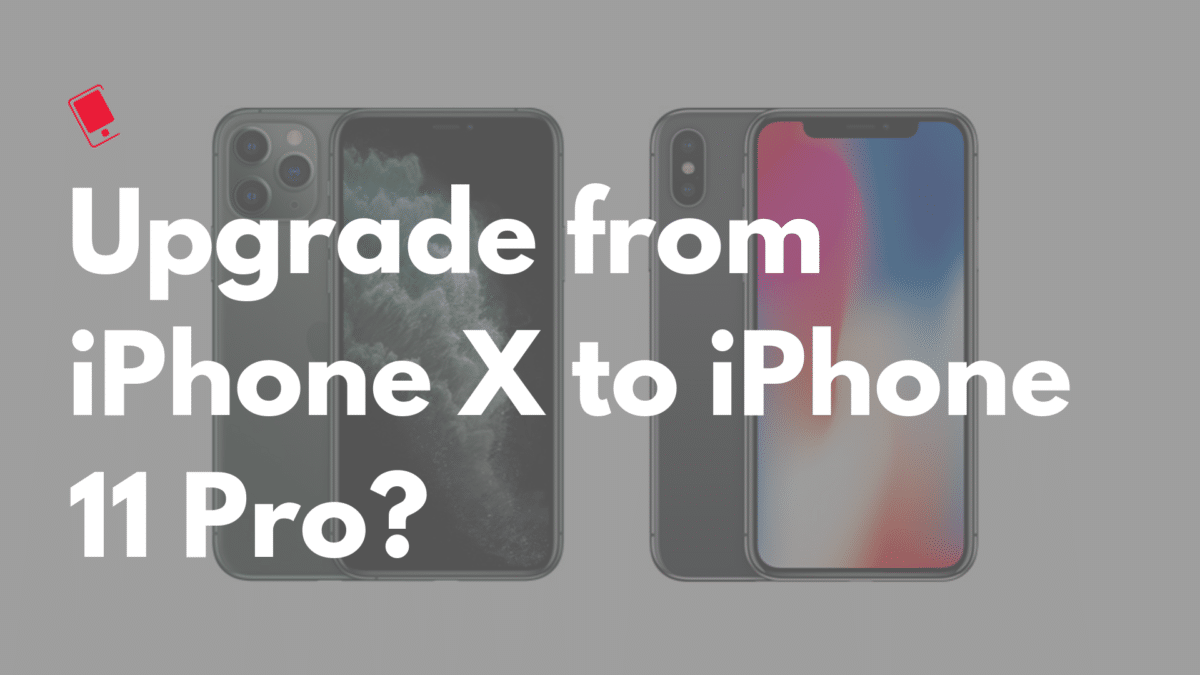
Should You Upgrade from iPhone X to iPhone 11 Pro?

Now that the iPhone 11 Pro is out, many iPhone X owners are wondering if they should upgrade to it or not. If you are in a similar dilemm...